View Return Requests
Dashboard > Trades > View Return Requests
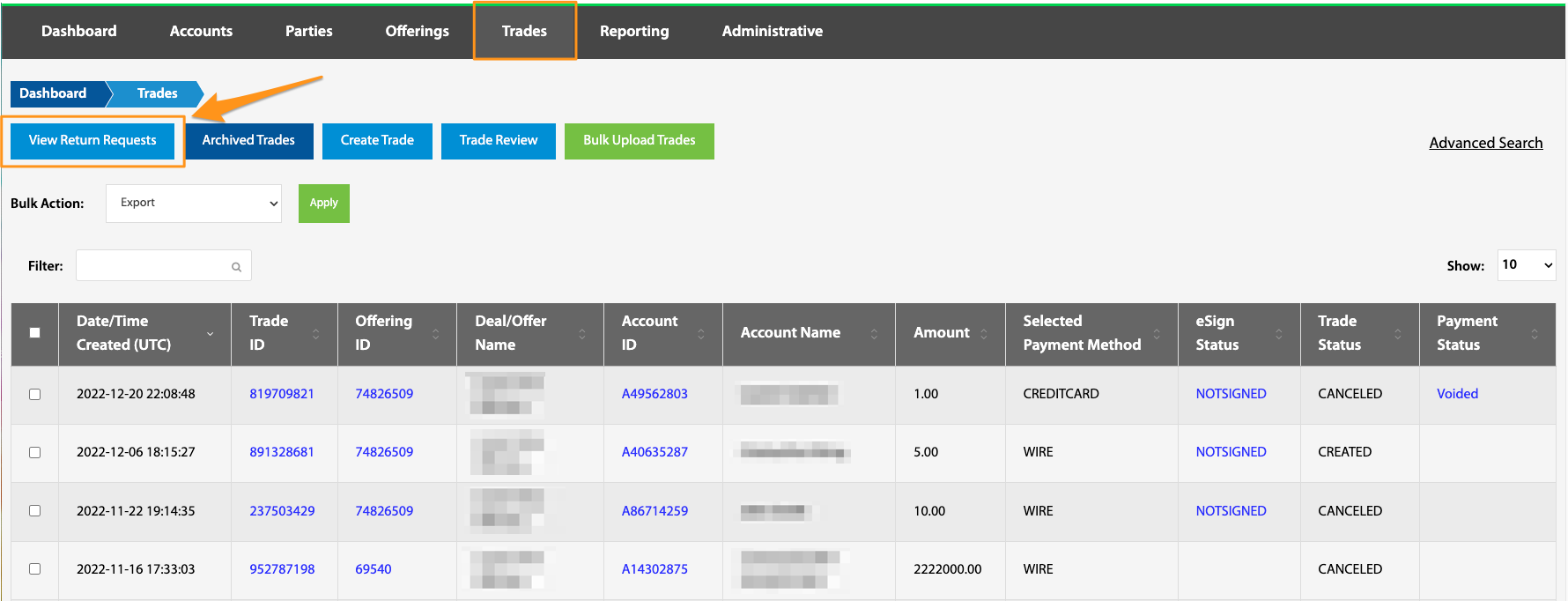
When an investor wishes to cancel their investment and receive a return, that request will show on the View Return Requests table. This table can also be navigated to directly from the Dashboard page.
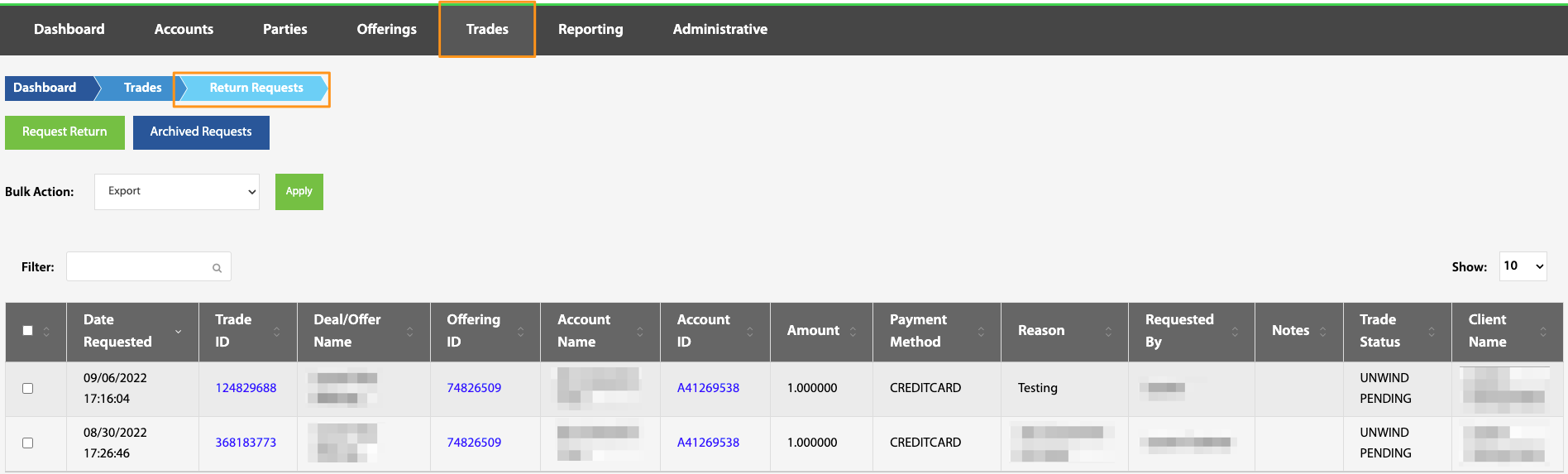
Request Return
Dashboard > Trades > View Return Requests > Request Return
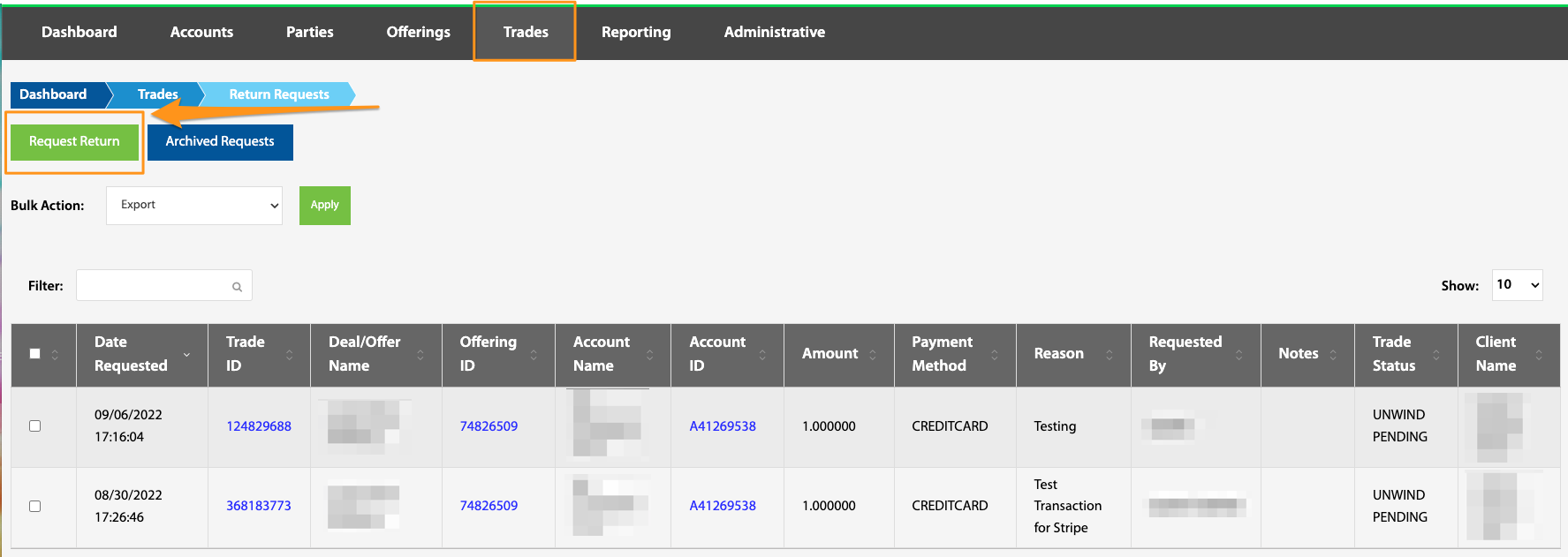
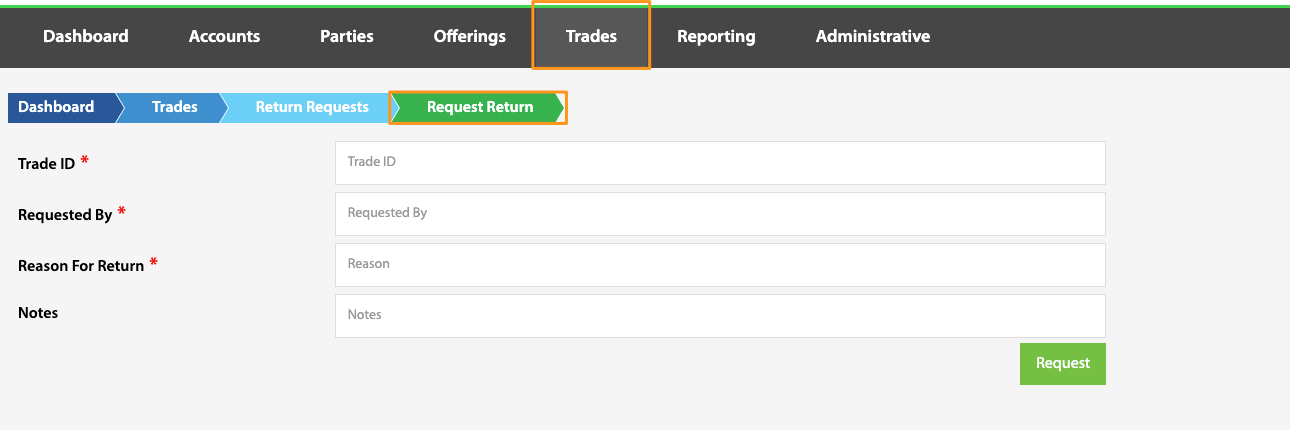
To request a return on an investment, navigate to Request Return and complete the form. This process will cancel the trade as well as initiate the fund return process, meaning the payment will either be voided or returned, dependent on the status of the investment at the time the request is made.
Archived Requests
Dashboard > Trades > View Return Requests > Archived Requests
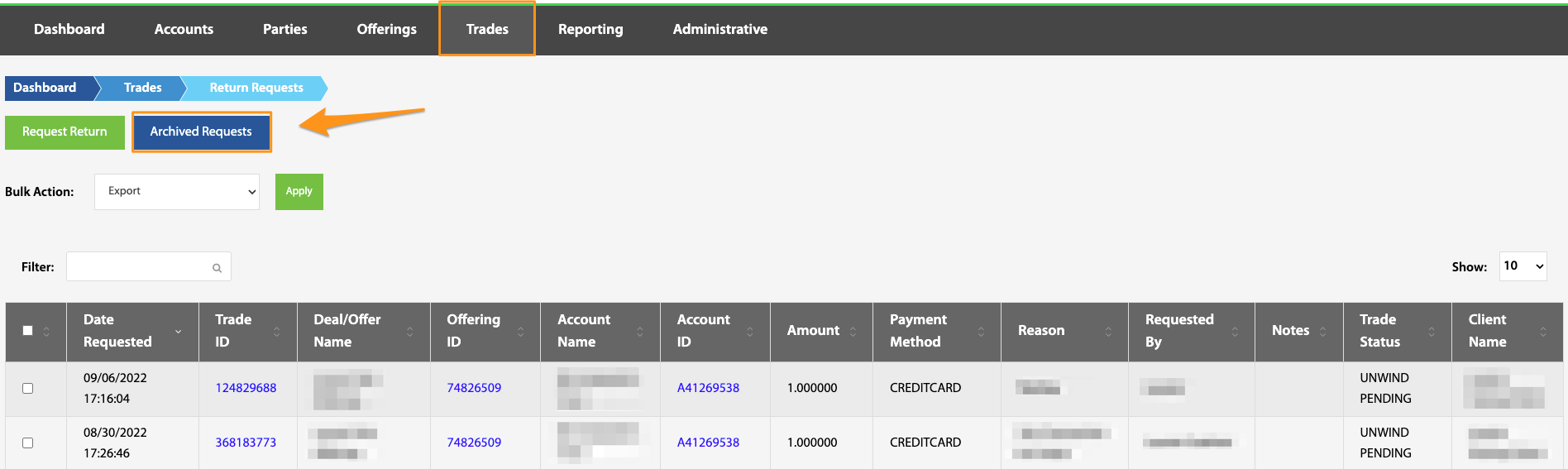
Due to regulations, trade requests cannot be deleted, but can be archived. Utilizing the Bulk Action portion of this page, select the return requests to be archived, select "Archive", then select Apply. Archived return requests can be restored via the Archived Requests page.
Bulk Action
Dashboard > Trades > View Return Requests > Bulk Action selection
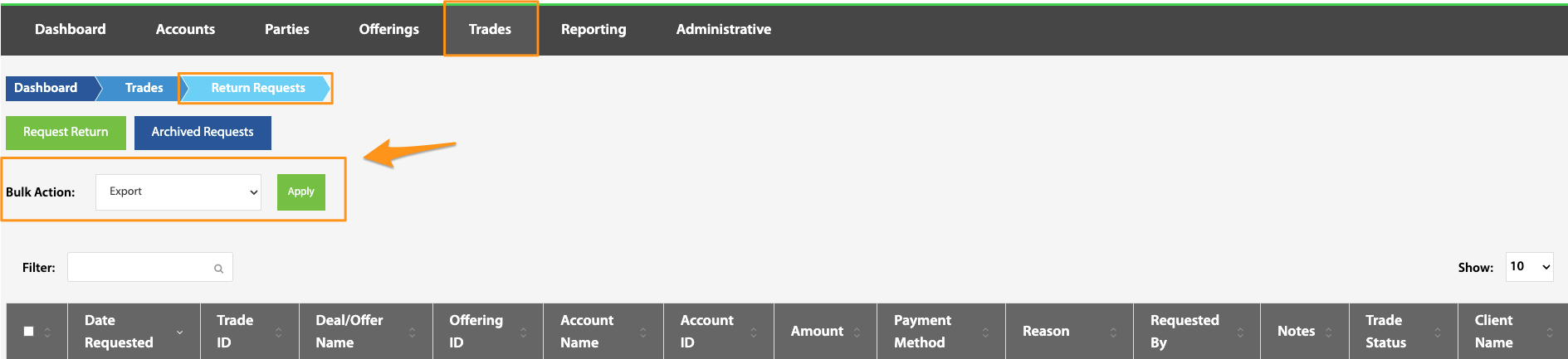
Utilizing the Bulk Action function from the Return Requests page, requested returns can either be archived or exported. To do this, select the desired requests then select the desired action from the dropdown menu.
Export
This export contains the following fields specific to the trade and the return request including, but not limited to: request return date and reason, Trade ID and creation date, and payment information. For more export and reporting options, see Reporting View.