View DirectInvest Buttons
Dashboard > Offerings > View DirectInvest Buttons
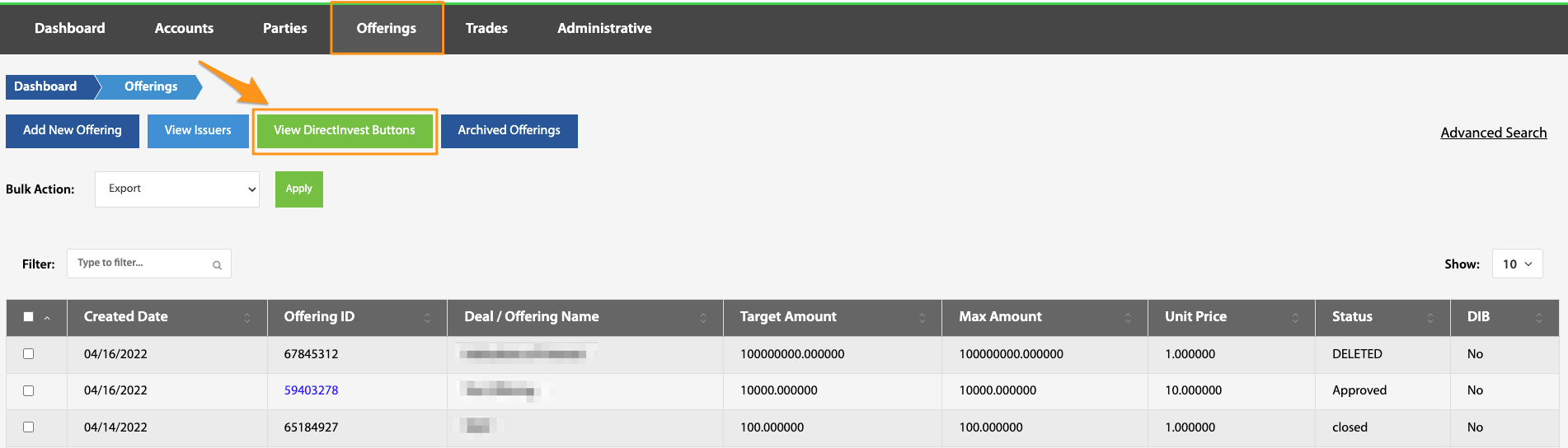
If DirectInvest buttons are being utilized, they can be accessed here. From this page, individual buttons can be edited, viewed, previewed, or duplicated.
Create New DirectInvest Button
Dashboard > Offerings > View DirectInvest Buttons > Create New DirectInvest Button
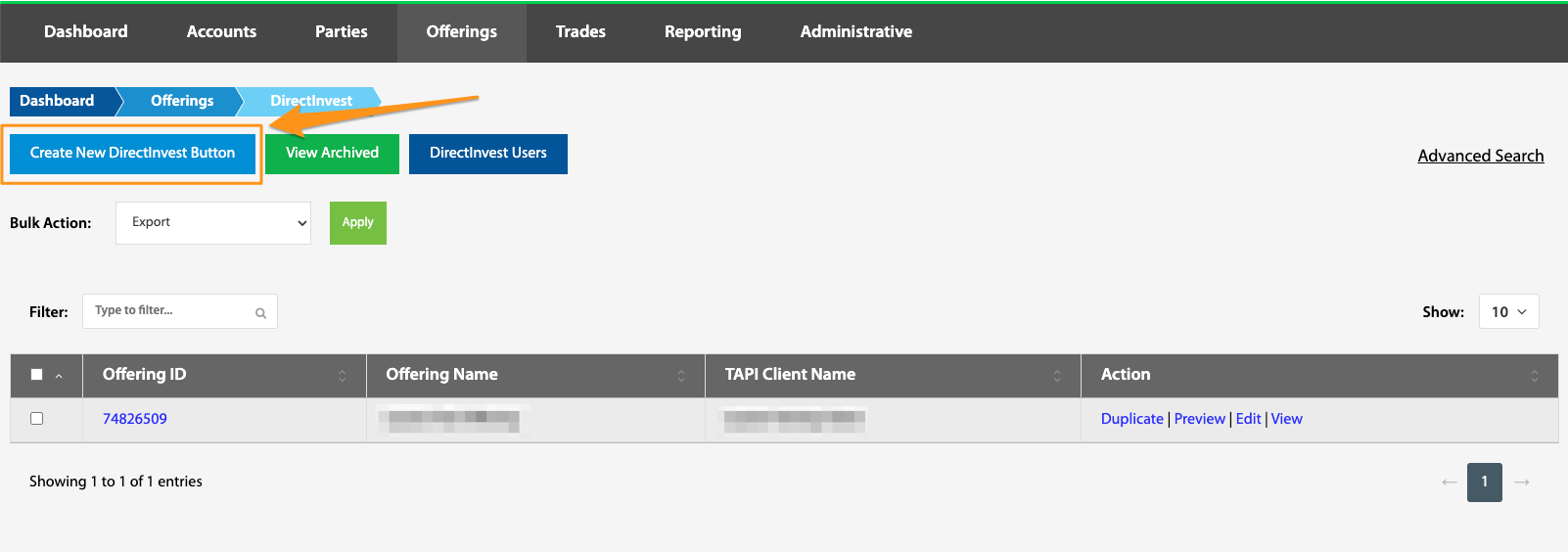
To make a new DirectInvest button, first make sure the desired offering exists and copy down the Offering ID number for future reference. Navigate to the Create a New Direct Invest Button and enter the desired Offering ID number. Click the Sync Offering button.
To learn more about creating an offering through the TransactAPI admin dashboard, read Setting up the DirectInvest Button 101.
Once the offering has synced, there are many different permissions and design options that can be chosen to customize your DIB. See How to customize permissions for the DirectInvest Button.
View Archived
Dashboard > Offerings > View DirectInvest Buttons > View Archived
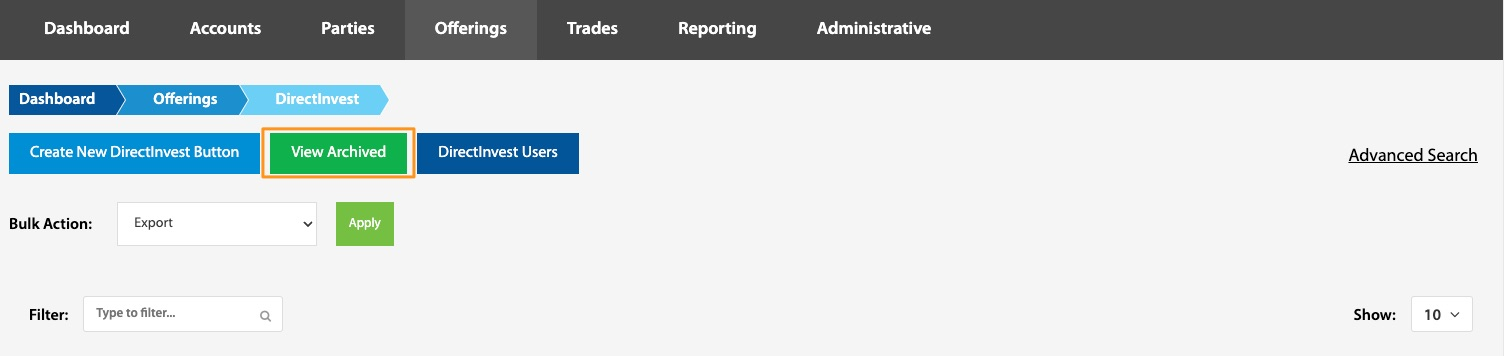
After an offering through a DirectInvest button has closed, archiving it can take it out of the main view to clear and organize your space in TransactAPI. Archived DirectInvest offerings can be viewed by selecting this button. Once selected, there is an option to restore a DirectInvest offering.
DirectInvest Users
Dashboard > Offerings > View DirectInvest Buttons > DirectInvest Users
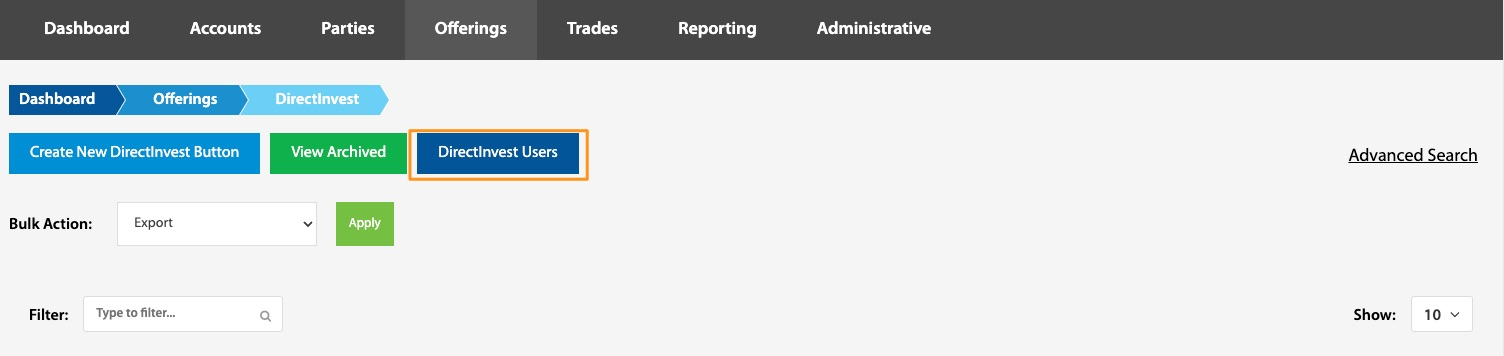
From the DirectInvest Users page and using the Filter feature, specific DIB users can be located.
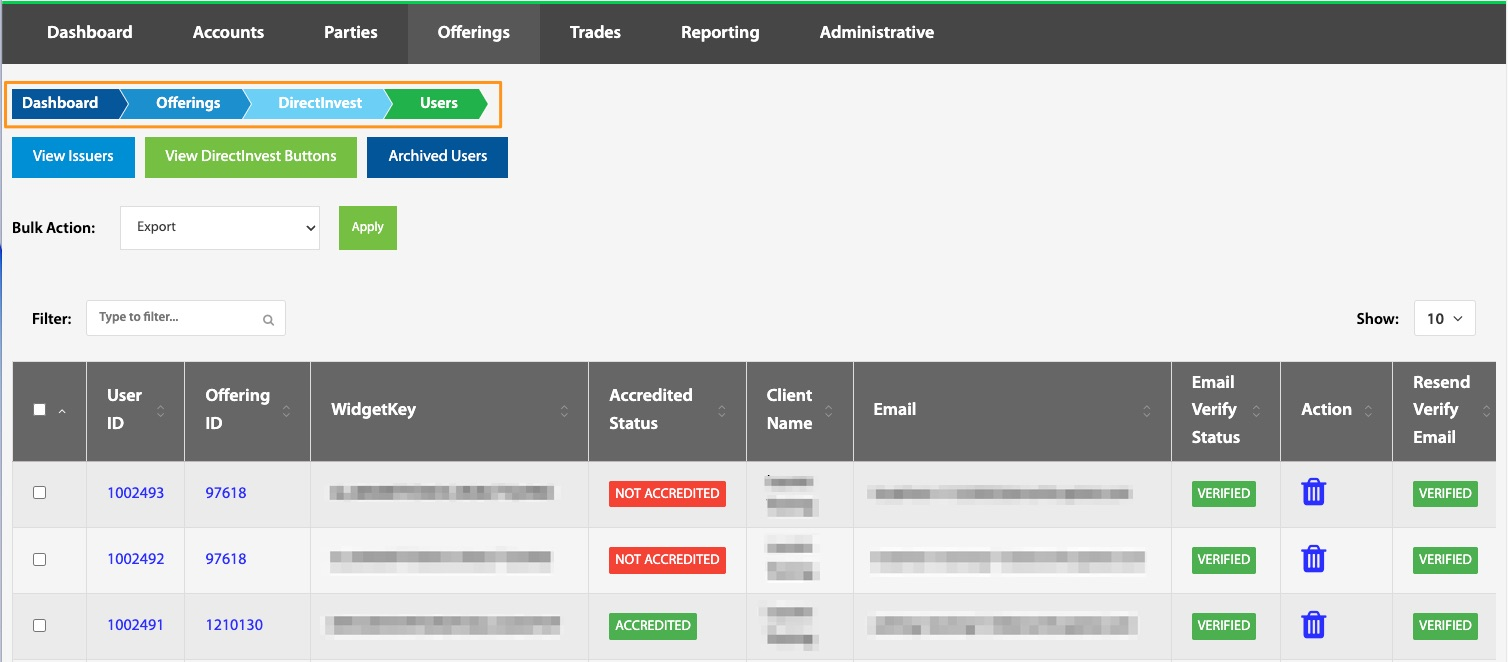
View Issuers
Dashboard > Offerings > View DirectInvest Buttons > DirectInvest Users > View Issuers
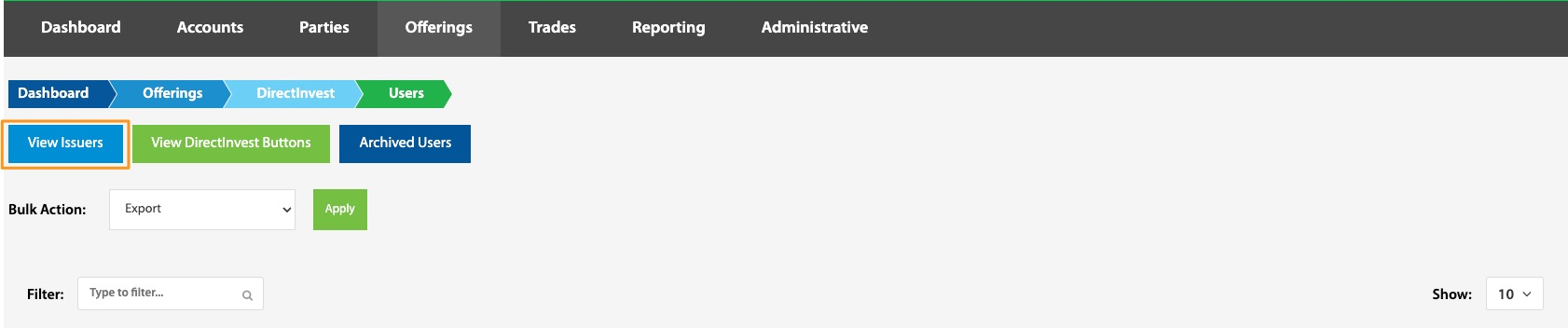
Navigating through DirectInvest from the Dashboard, then through the DirectInvest Users button and finally selecting the View Issuers button, a list of all of your issuers using a DirectInvest button will show.
View DirectInvest Buttons
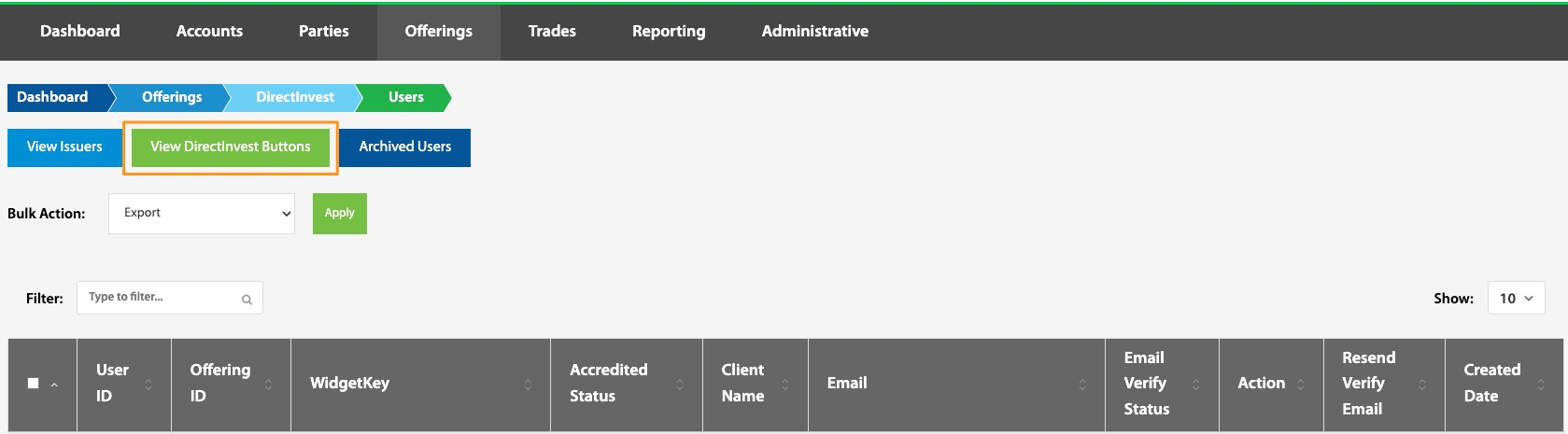
Dashboard > Offerings > View DirectInvest Buttons > DirectInvest Users > View DirectInvest Buttons
Archived Users
Dashboard > Offerings > View DirectInvest Buttons > DirectInvest Users > Archived Users
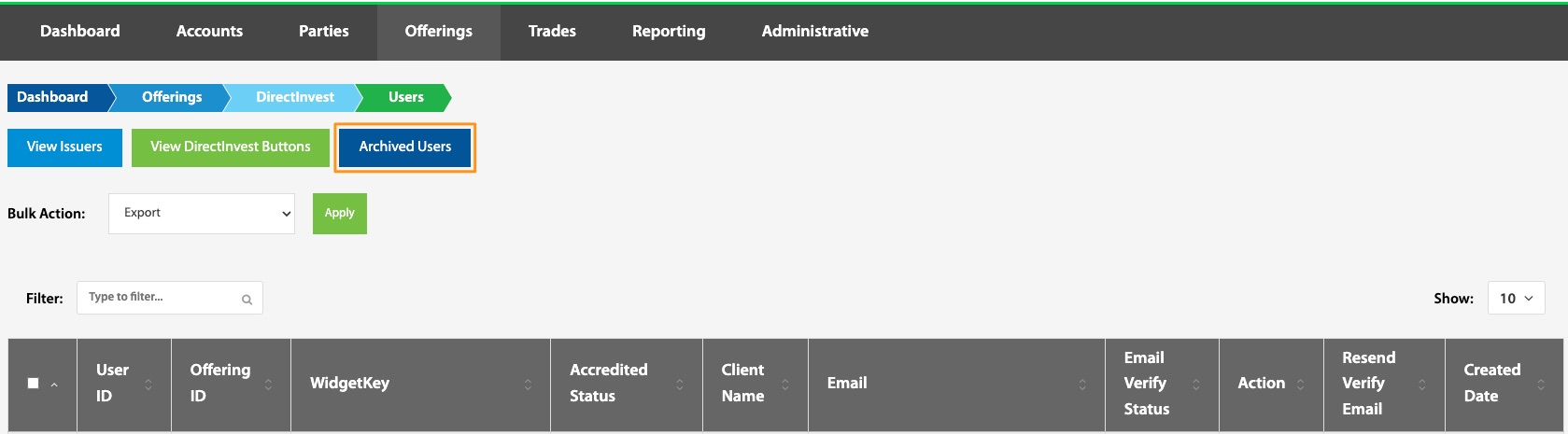
This Archived Users page displays all DIB users that have been archived. DIB users can be both archived and restored using the Bulk Action button.
User ID
Dashboard > Offerings > View DirectInvest Buttons > Direct Invest Users > User ID hyperlink
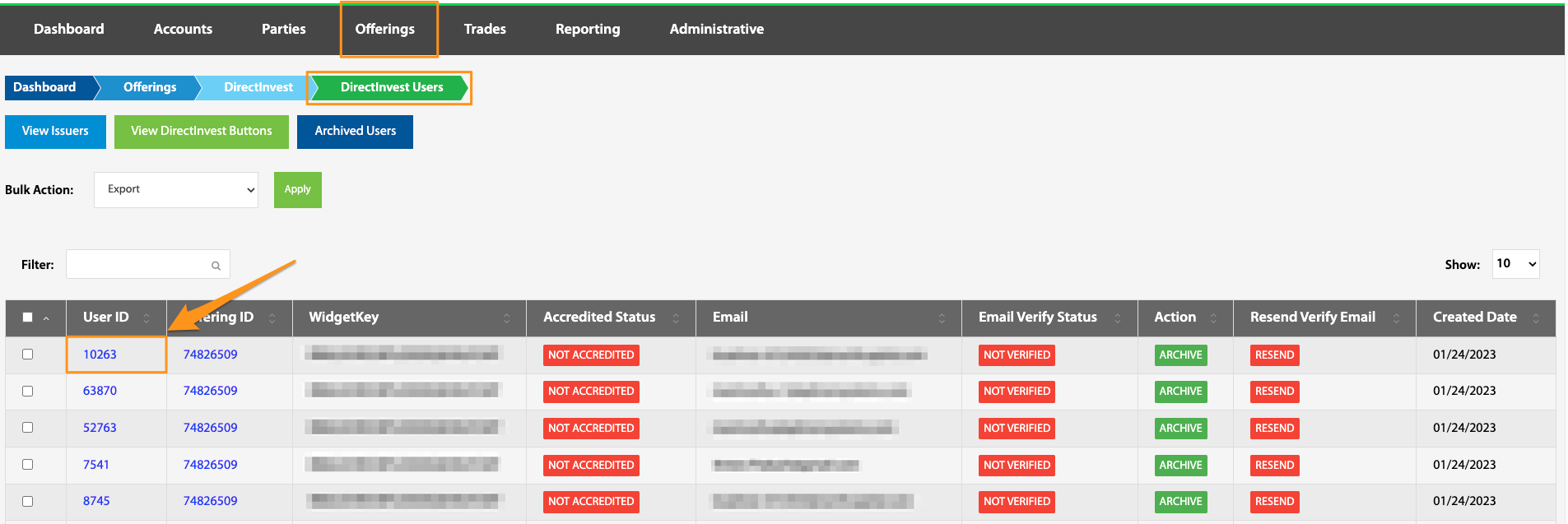
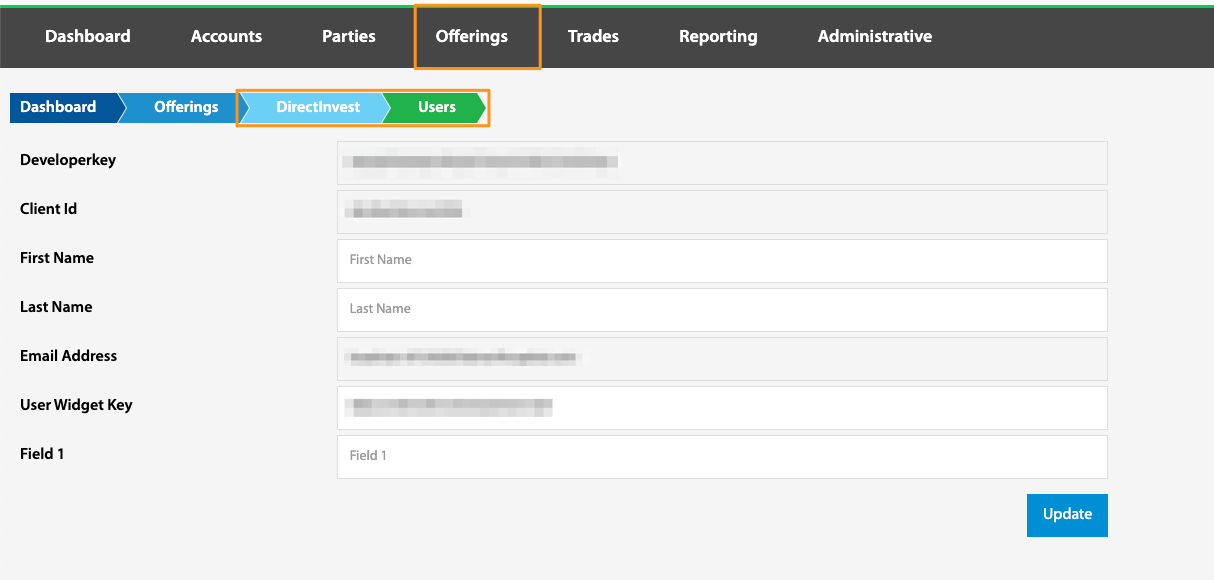
The User ID hyperlink navigates to the DIB user's basic information including name and email, client ID, and which Developer Key was utilized for the creation of the user.
Offering ID
Dashboard > Offerings > View DirectInvest Buttons > Direct Invest Users > Offering ID hyperlink
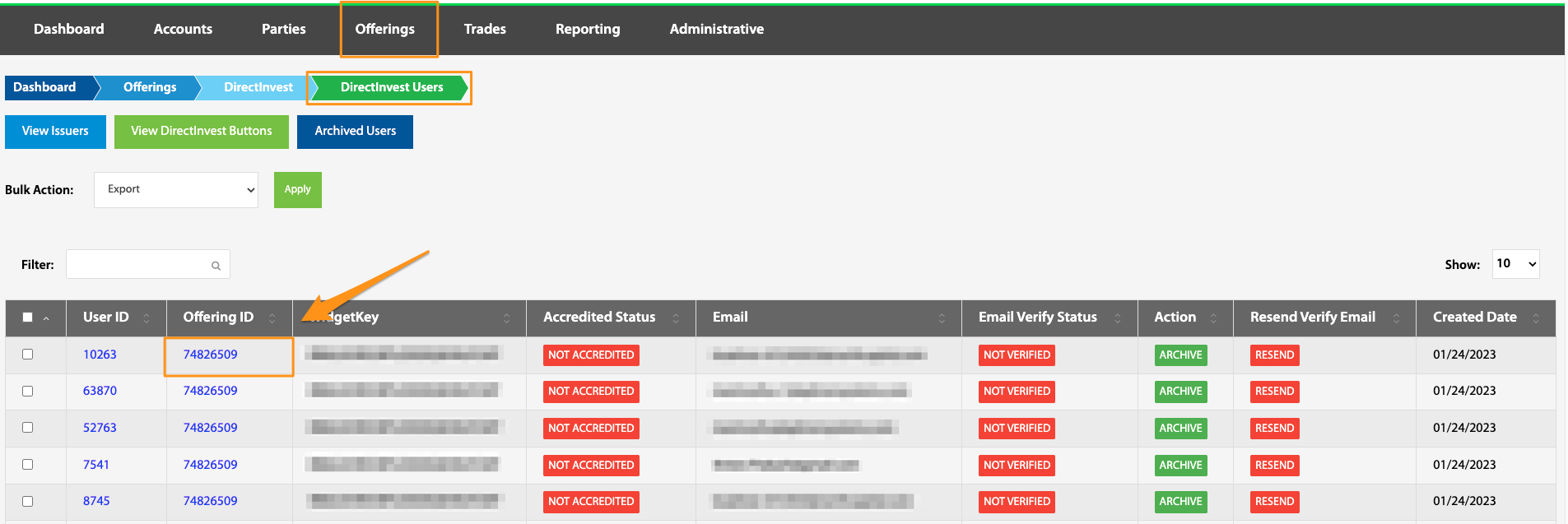
Selecting the Offering ID hyperlink on a specific DIB user navigates to the Offering Overview page. See Offering ID.
Accredited Status
Dashboard > Offerings > View DirectInvest Buttons > Direct Invest Users > Accredited Status toggle
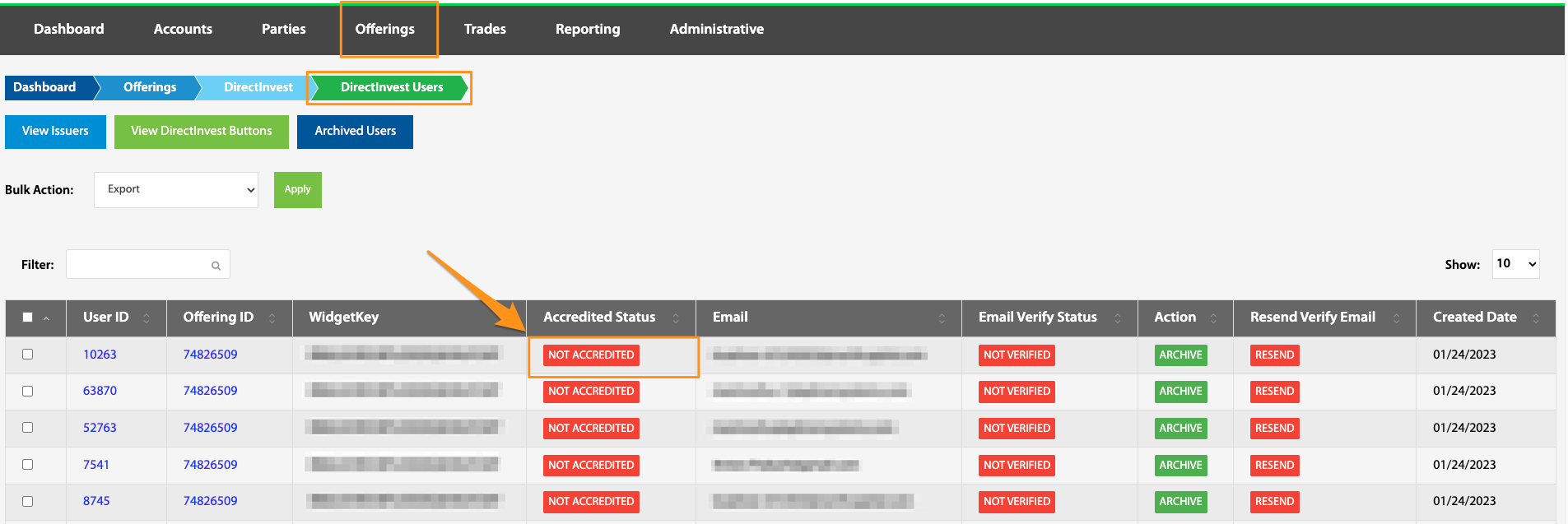
If a DirectInvest Button offering only allows for accredited investors and a user selects "No", they will not be able to proceed with the investment. If this selection was made in error, the admin can toggle the Not Accredited button to Accredited, which will allow the investor to continue. This should only be done in cases where the user is accredited.
Email Verify Status
Dashboard > Offerings > View DirectInvest Buttons > Direct Invest Users > Email Verify Status toggle
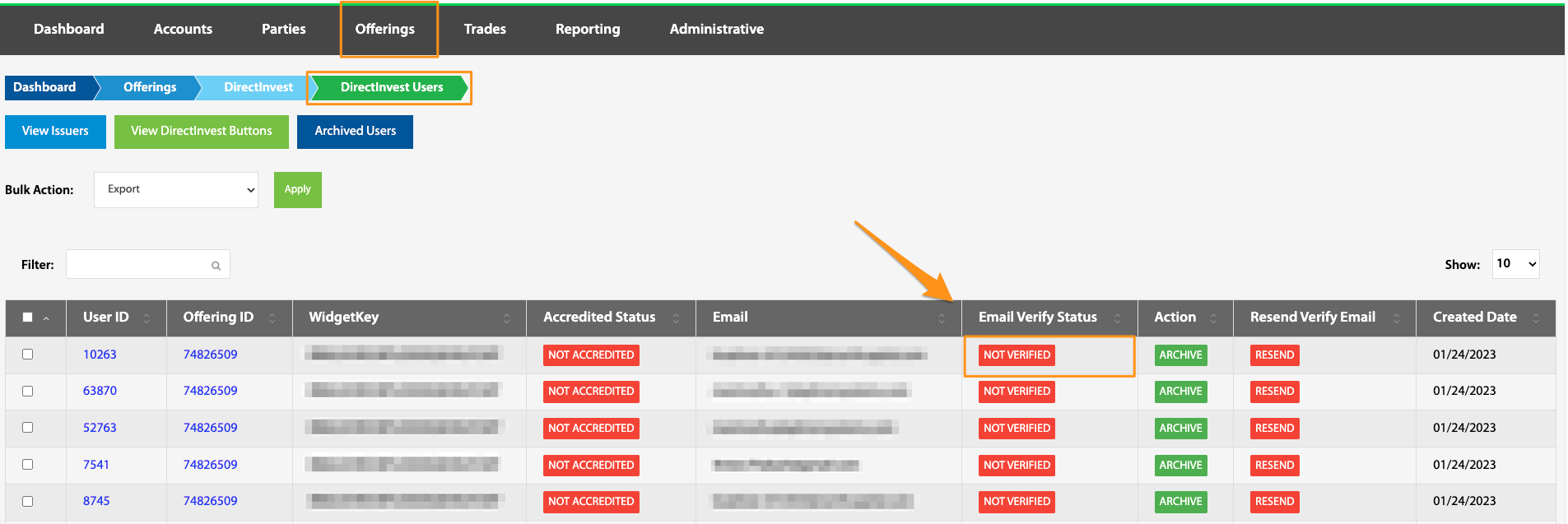
If Create User = Yes (see How to customize permissions for the DirectInvest Button), a new DIB user needs to validate their email address before logging into the system. In cases where the user is unable to retrieve their original verification code email, it is possible to restart this process and resend the verification code email. To do this, toggle from Verified to Not Verified. Once the email status is Not Verified, the admin is then able to resend the verification email.
In special situations, this function can work in reverse. To manually verify an email that's status is Not Verified, it is possible to toggle to a Verified status, which will skip the verification code process for the user. Note: if the user does not receive a verification email, please verify the accuracy of the email address before manually toggling to Verified. If the email address is entered incorrectly, the user will not receive their investment confirmation email.
Archive
Dashboard > Offerings > View DirectInvest Buttons > Direct Invest Users > Archive toggle
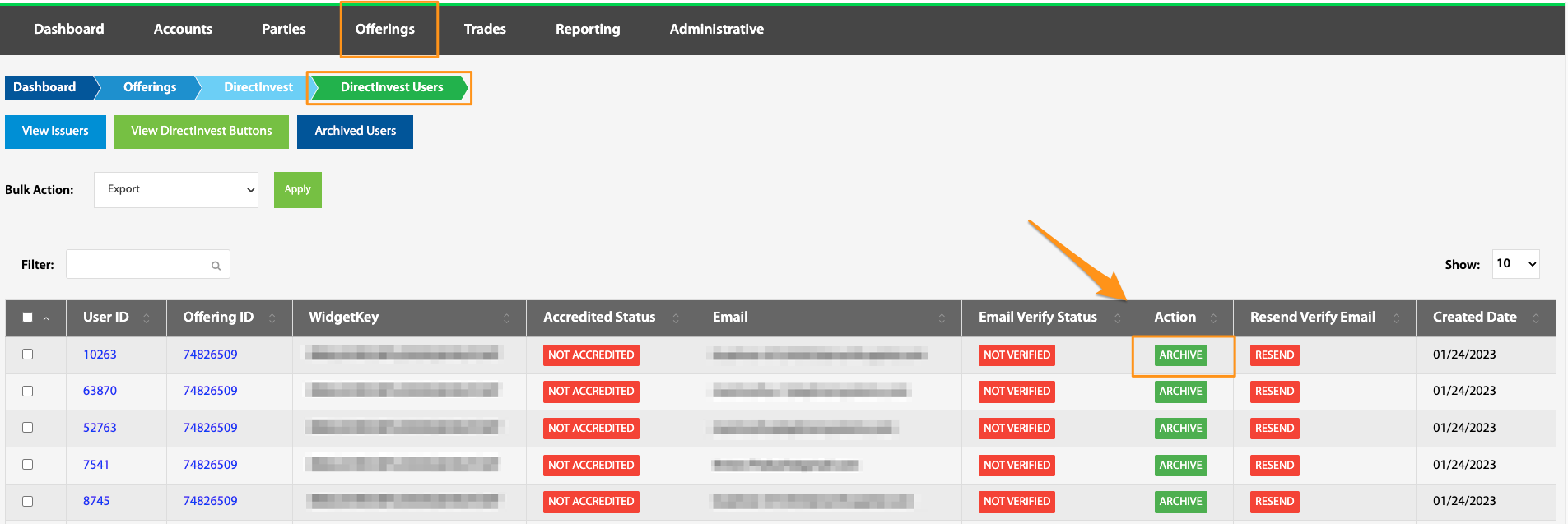
Due to regulations, DIB users can not be deleted. To clear space or create a more concise view, DirectInvest Button users can be Archived. Simply select the Archive toggle.
Resend Verification Email
Dashboard > Offerings > View DirectInvest Buttons > Direct Invest Users > Resend Verify Email
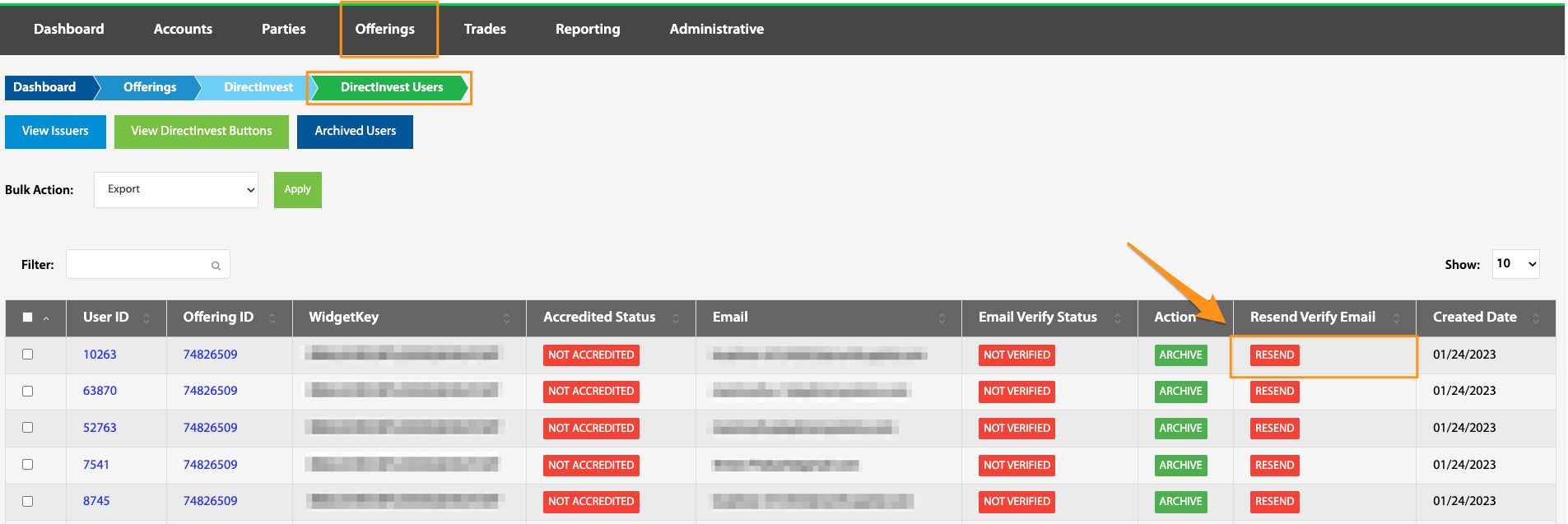
If a user needs their email verification code resent, this can be done by selecting this Resend button. This toggle is linked to the Email Verify Status and will only be toggled to Resend if Email Verify Status = Not Verified.