Accounts Directory
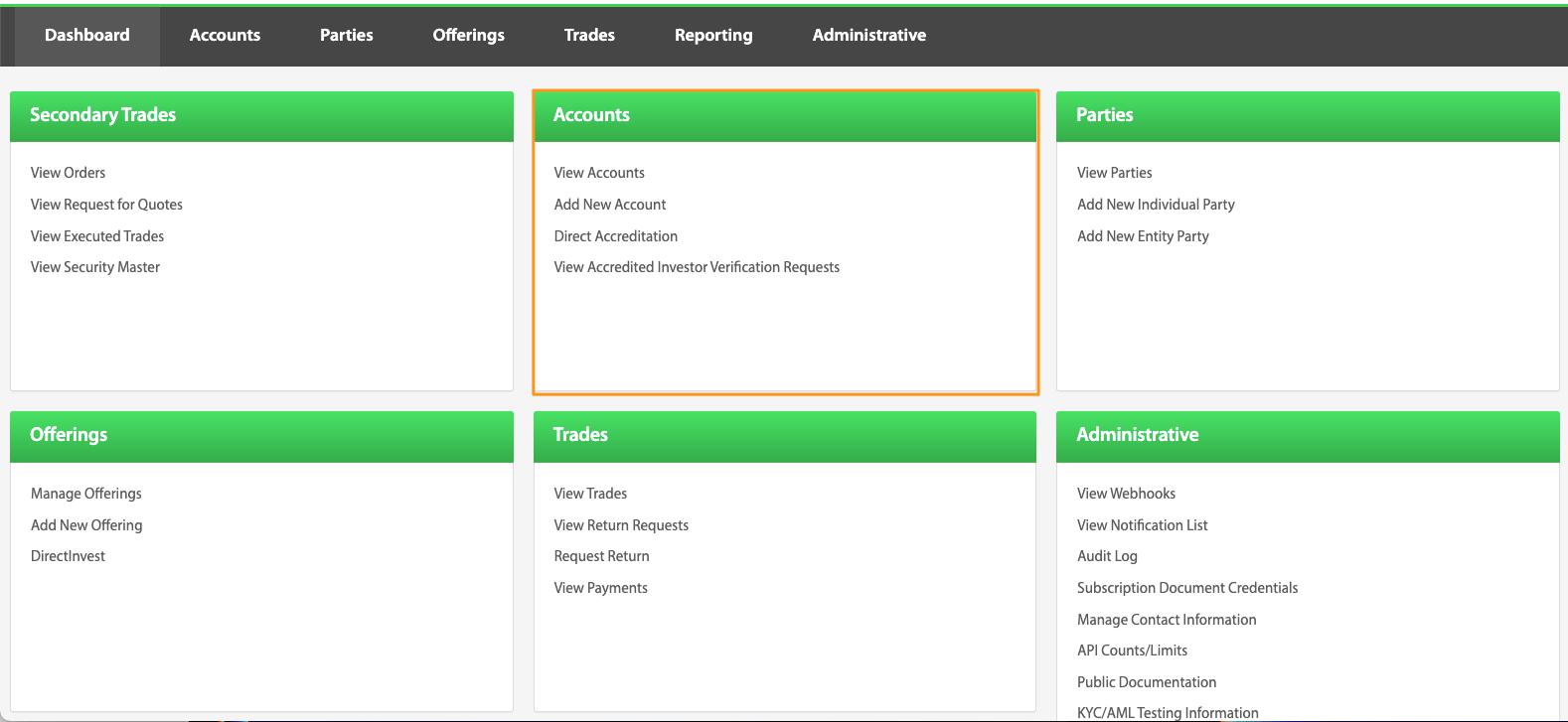
View Accounts
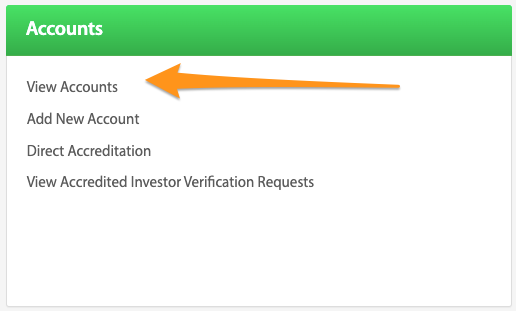
Opens the Accounts View.
Add New Account
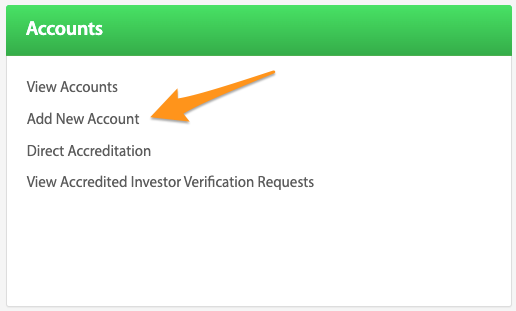
Opens the Add Account page.
Direct Accreditation
Dashboard > Direct Accreditation
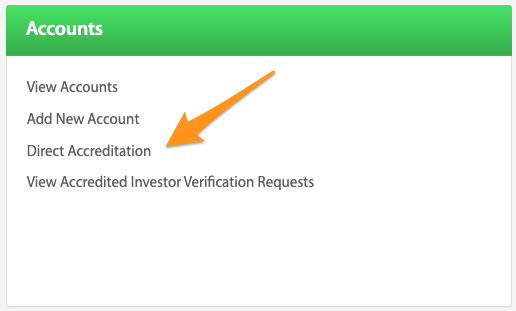
If raising capital using Regulation D 506(c), Investor Accreditation Verification may be required on your investors. North Capital offers this verification as an optional service. The data is collected from the investor via document upload and submitted to North Capital using the Direct Accreditation Button, or DAB. Please note: view access to the documents uploaded will not be automatically made available as a data security measure. Access to this data can be requested via button permissions. See the following permissions in How to customize permissions for the DirectInvest Button: Income and Net Worth Collection, Employment Questions, SS Number Collection, and Photo ID Collection.
A registered representative of North Capital will review the documentation and either approve, reject, or request more information. North Capital’s Direct Accreditation Button is an easily implemented integration which allows investors to easily request an Accredited Investor verification. There are many customizable features that facilitate making this button as unique as the page it's being added to.
See the Direct Accreditation Button guide.
Create New DAB
Dashboard > Direct Accreditation > Create New DAB
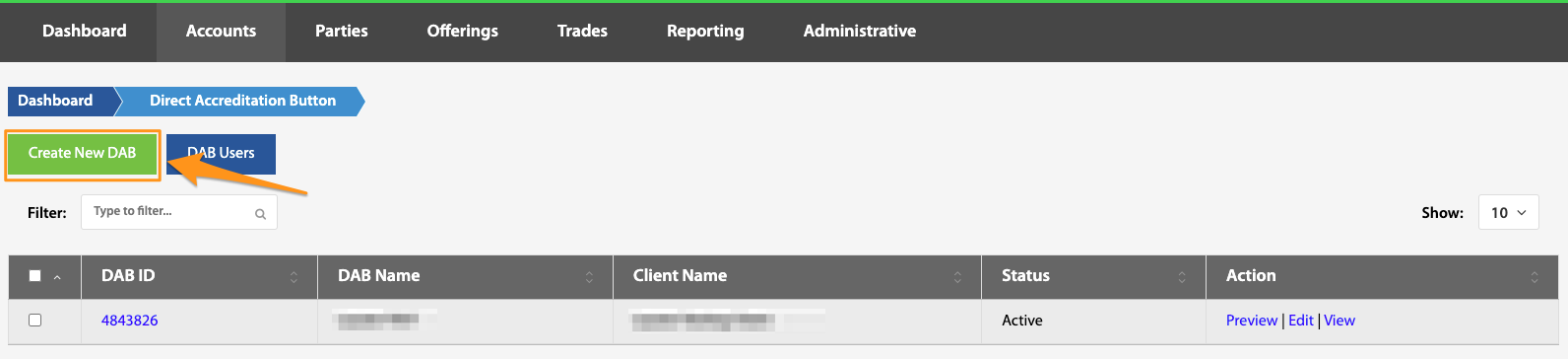
To make a new Direct Accreditation Button, navigate to the Direct Accreditation button from the admin Dashboard. Click the green Create New DAB button. After naming the DAB, there will be a page containing permissions and design customization options. The Direct Accreditation Button guide details these permissions and customizations.
DAB Users
Dashboard > Direct Accreditation > DAB Users
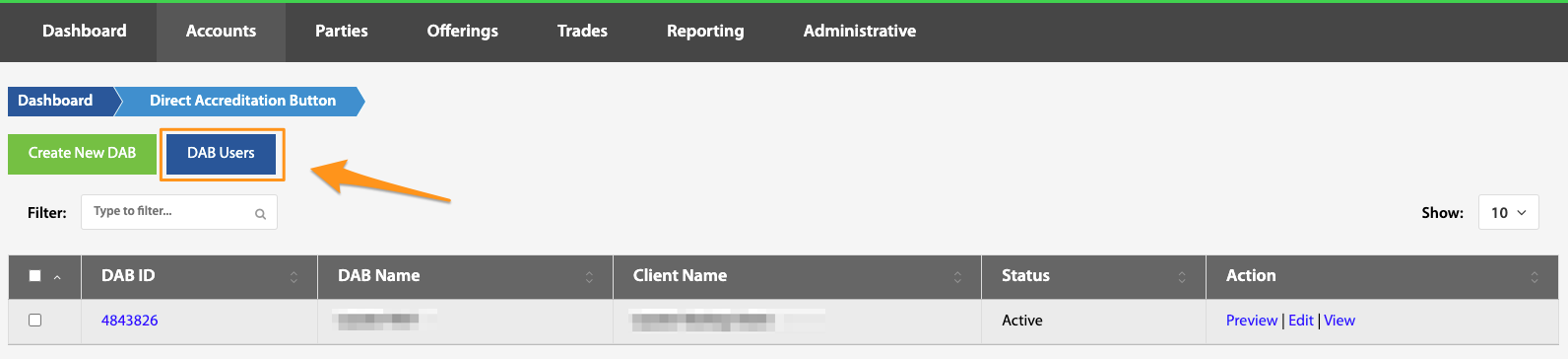
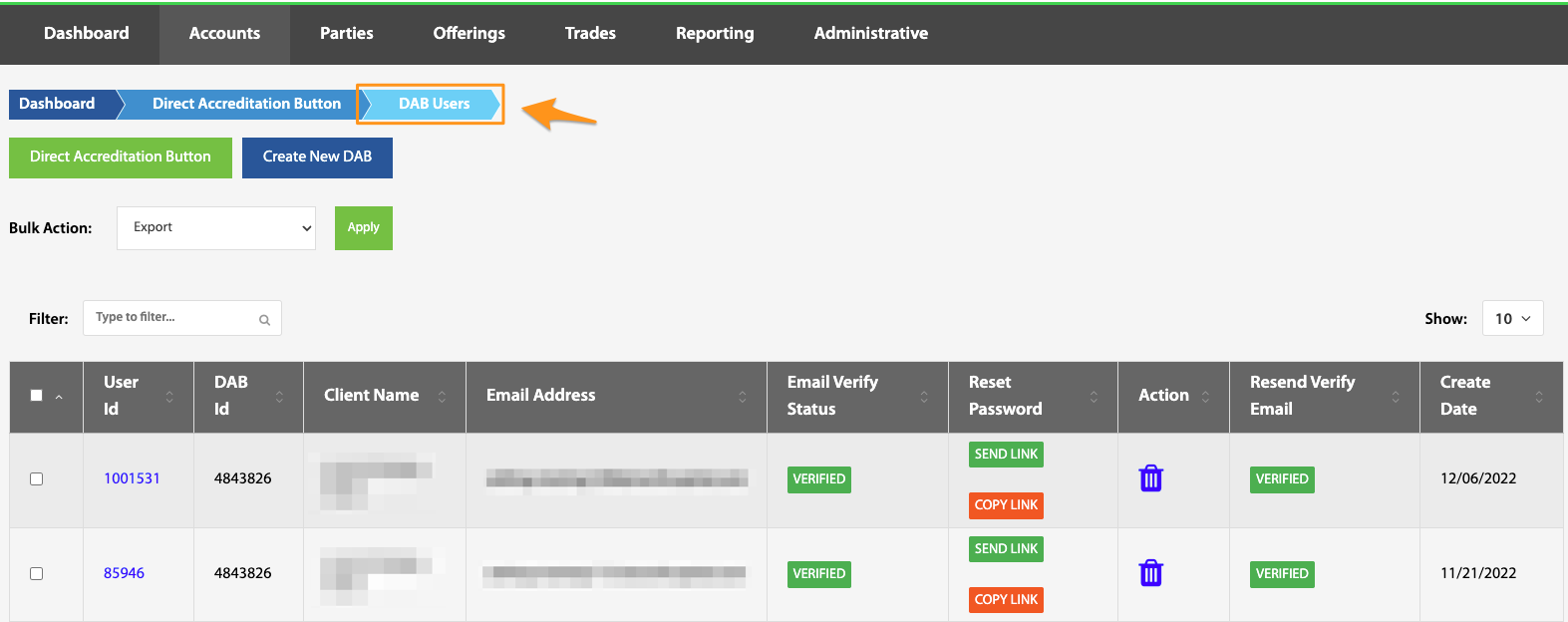
The DAB Users page gives an overview of all DAB users including User ID (the hyperlink currently holds no functionality) for tracking purposes, DAB ID to link each user to the specific DAB being utilized, Client Name and Email Address. There are also several key functions to note on this page.
Archived Users
Dashboard > Direct Accreditation > DAB Users > Archived Users
Due to regulatory requirements, DAB users can not be deleted from the TransactAPI system, but can be archived for a cleaner view. Archiving users can be done in bulk through the Bulk Action dropdown, or individually by selecting the desired user and selecting Archive. To restore archived users, navigate to the Archived Users, select the desired users to restore and select Restore.
Email Verify Status
Dashboard > Direct Accreditation > DAB Users > Email Verify Status
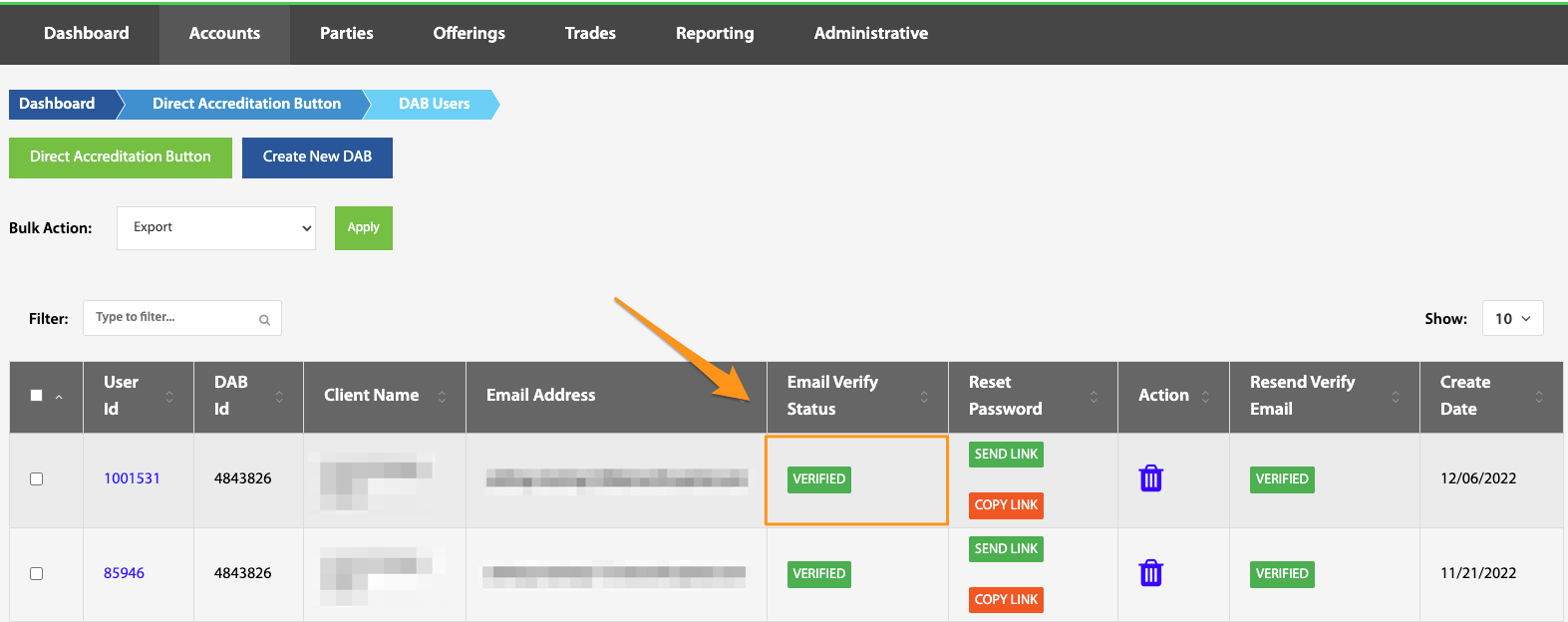
A new DAB user needs to validate their email address before logging into the system. In cases where the user is unable to retrieve their original verification code email, it is possible to restart this process and resend the verification code email. To do this, toggle from Verified to Not Verified. Once the email status is Not Verified, the admin is then able to resend the verification email.
In special situations, this function can work in reverse. To manually verify an email that's status is Not Verified, it is possible to toggle to Verified, which will skip the verification code process for the user. Note: if the user does not receive a verification email, please verify the accuracy of the email address before manually verifying. If the email address is entered incorrectly, the user will not receive their AI Verification letter via email.
Reset Password
Dashboard > Direct Accreditation > DAB Users > Reset Password
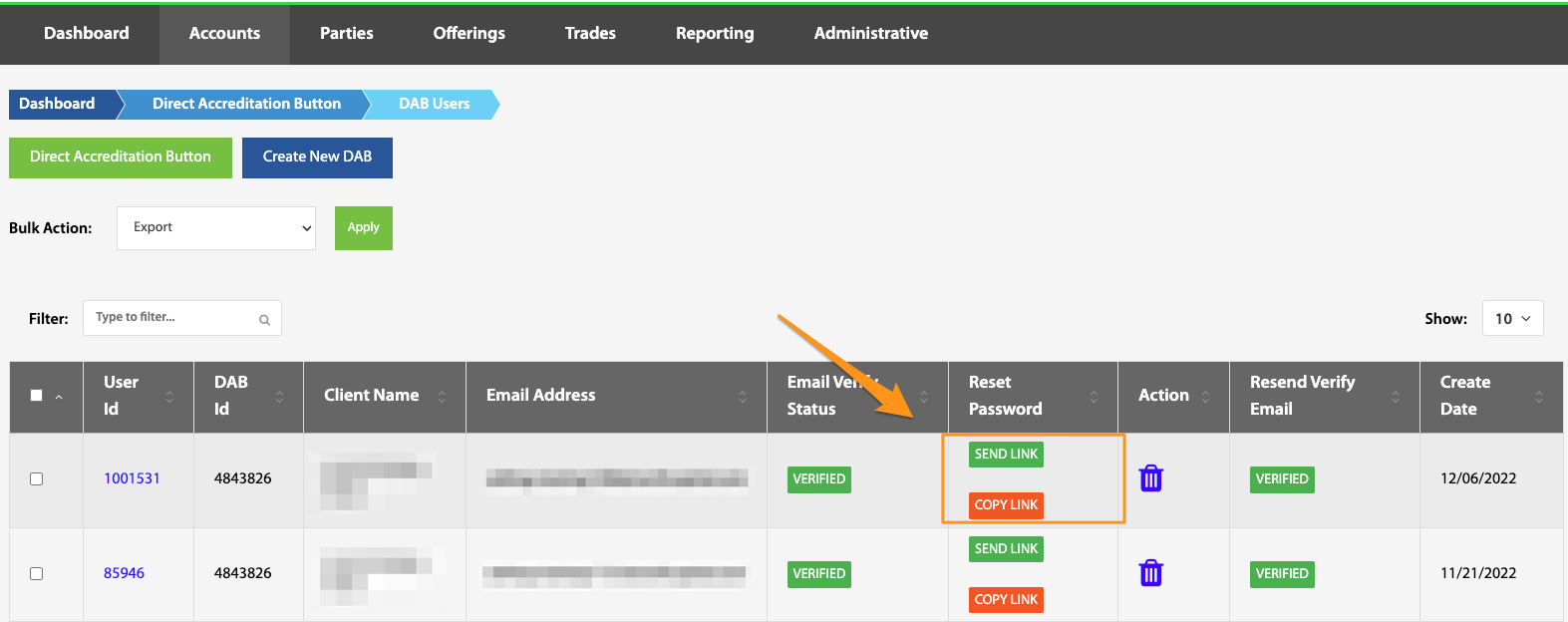
Resetting an investor's DAB password can easily be done from the TransactAPI admin dashboard. To do this, navigate to the DAB Users button by selecting Direct Accreditation from Accounts Directory on the Dashboard. From this view, simply search for the desired client and select to either send them a system generated password reset email by selecting Send Link or copying the reset link and sending it to the investor directly by selecting Copy Link.
Archive
Dashboard > Direct Accreditation > DAB Users > Garbage can icon
Due to regulatory requirements, DAB users can not be deleted from the TransactAPI system, but can be archived for a cleaner view. Archiving users can be done in bulk through the Bulk Action dropdown, or individually by selecting the desired user and selecting Archive.
Resend Verify Email
Dashboard > Direct Accreditation > DAB Users > Resend Verify Email
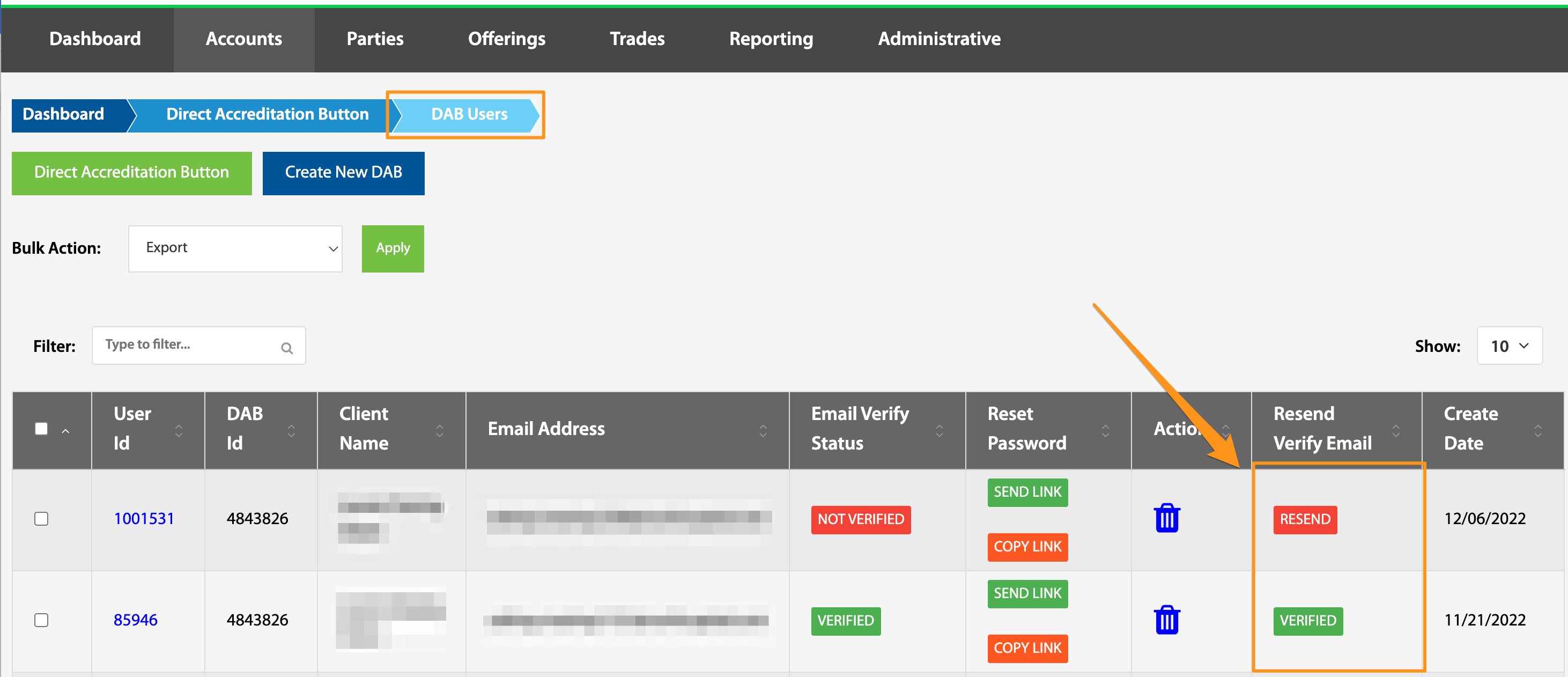
If a user needs their email verification code resent, this can be done by selecting this Resend button. This toggle is linked to the Email Verify Status and will only be toggled to Resend if Email Verify Status = Not Verified.
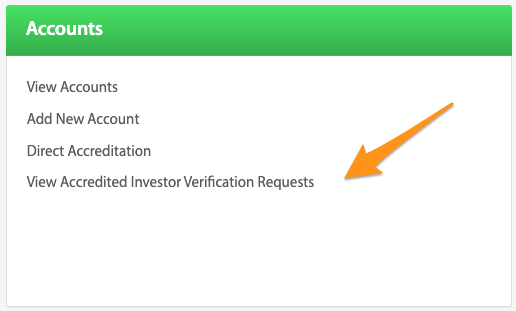
View Accredited Investor Verification Requests
Dashboard > View Accredited Investor Verification Requests
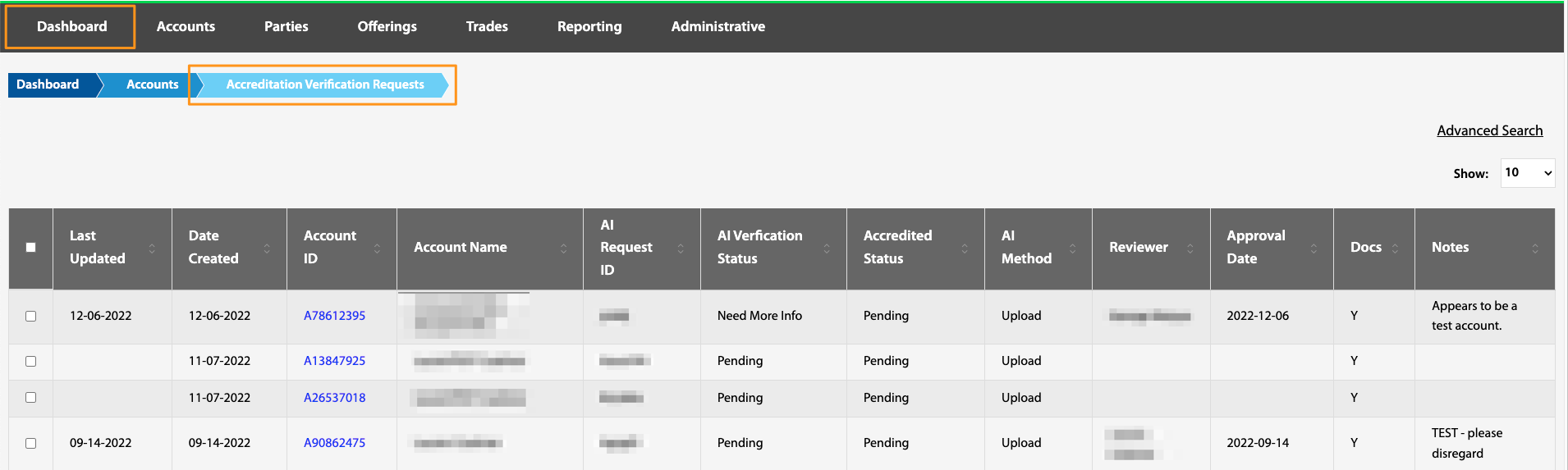
All investors that have had an AI request submitted can be found on this page. Viewing the table, the admin is able to see the request creation date as well as the date the request was last updated. The Account ID hyperlink navigates directly to the Account Overview page for the account linked to the investor's Party ID.
The AI Verification and Accredited statuses can also be found on this table. For more information, please see North Capital's knowledge base article: What are the AI Request Statuses and what do they mean?
If at any point further assistance is needed, please refer to the Loom videos and knowledge base links at the bottom of this page before contacting techsupport@NorthCapital.com.
Direct Accreditation Button Troubleshooting / Knowledge Links
What types of files are accepted for AI?
Who do I contact about verification?
What are the AI Request Statuses and what do they mean?
Direct Accreditation Button Visual Resources