Client User
Dashboard > Administrative > Client User
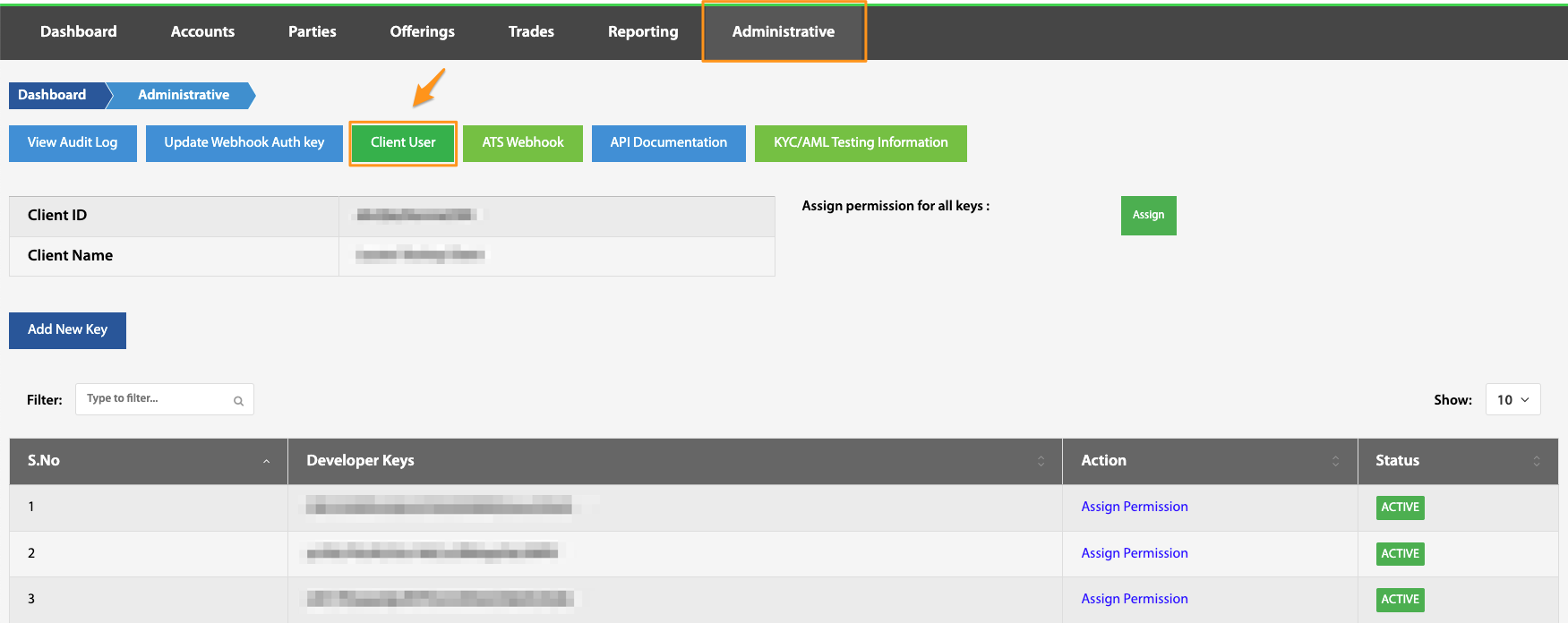
Any user with account owner level permissions is able to view all other client users created within the environment by navigating to the Administrative landing page and selecting Client User. There are many functions that can be performed from this page.
Add Client User
Dashboard > Administrative > Client User > Add Client User
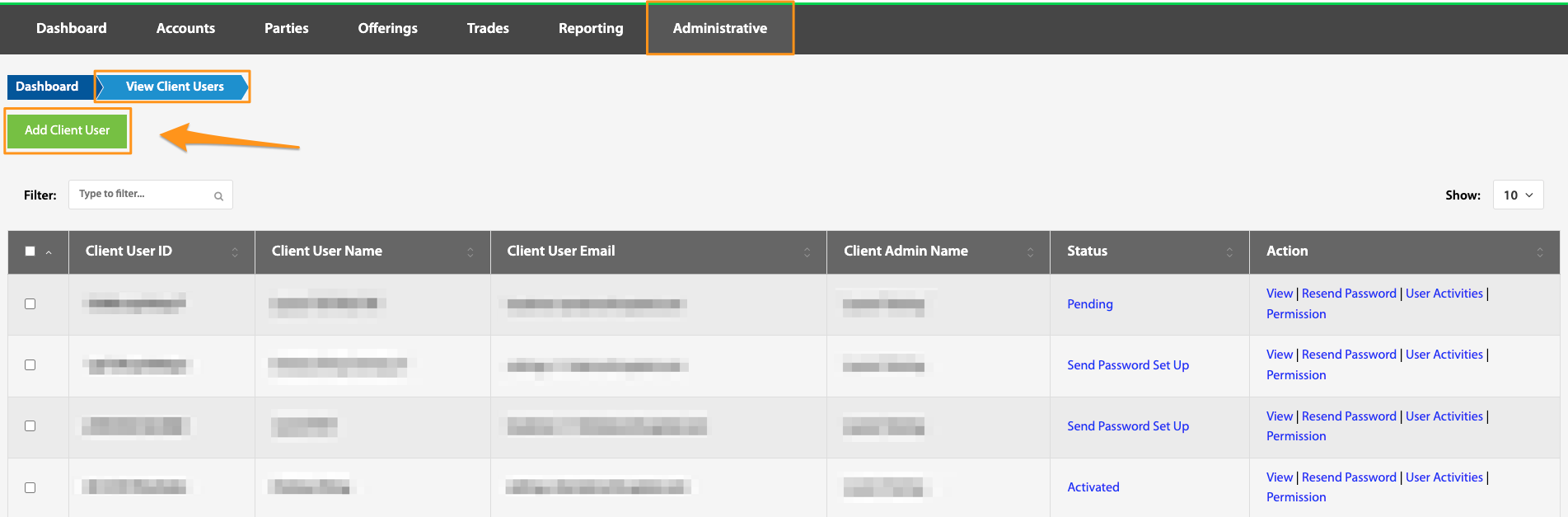
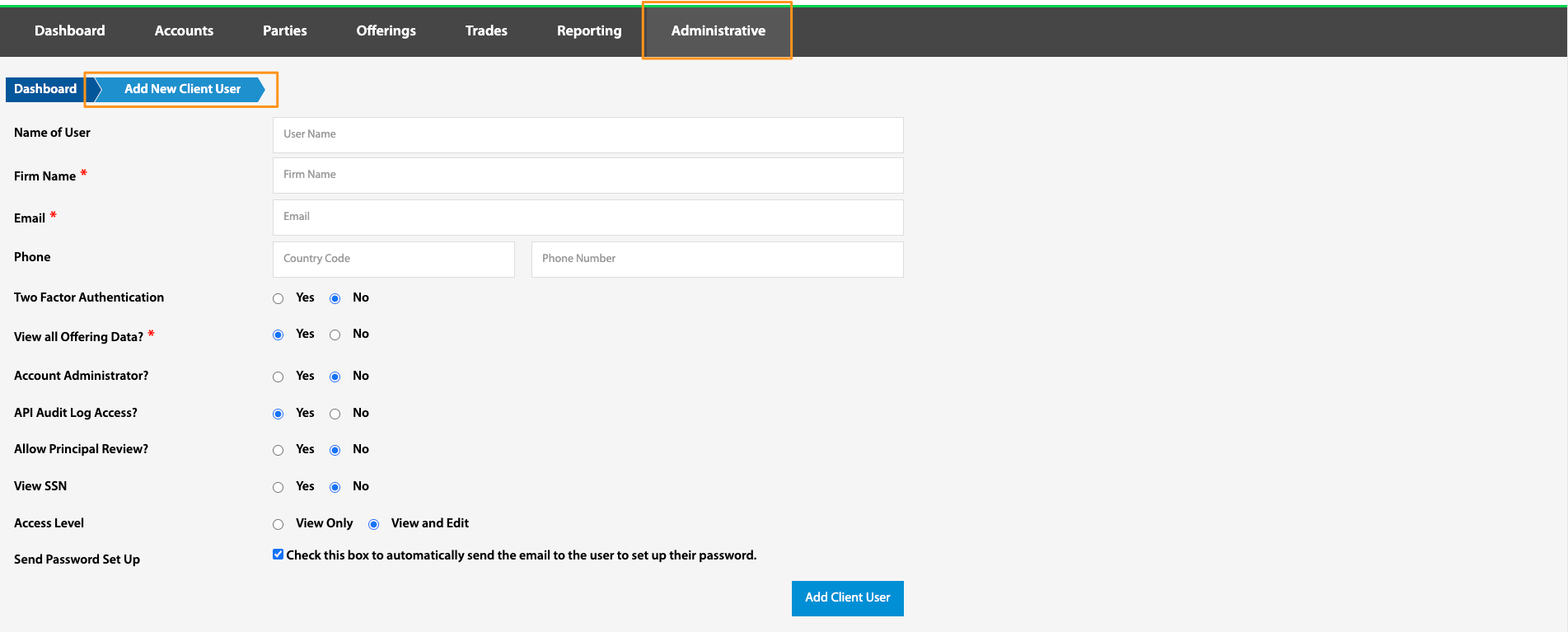
Once access has been granted to the admin panel of TransactAPI, it is possible to add more admin users. From the TransactAPI admin dashboard, navigate to the Administrative view and click the Client User button. Then, clicking the Add a Client User button, you will be directed to the page where your new admin user’s information can be input.
North Capital's TransactAPI admin panel users guide walks through the client user creation process and breaks down all the user permissions that are available.
Status
Dashboard > Administrative > Client User > Status hyperlink
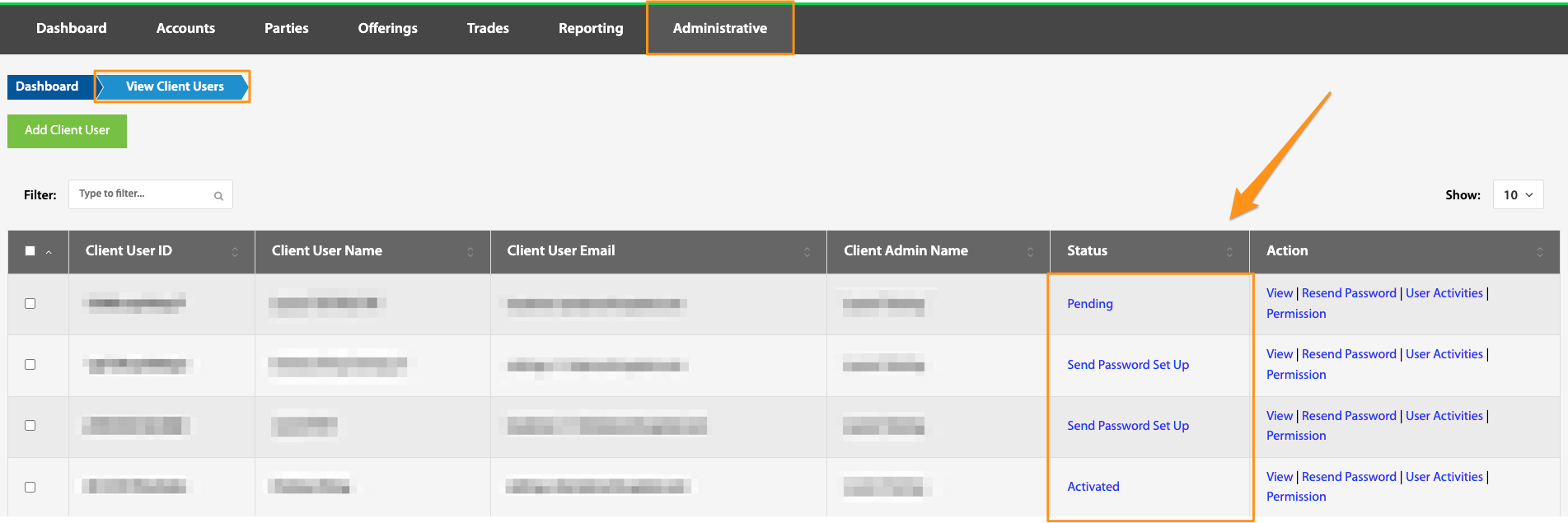
Each client user has a status hyperlink. Below is a breakdown of each status and its related hyperlink action.
- Pending - The client user has been created, but the user has not activated their account by setting up their password and logging in for the first time. This hyperlink has no functionality.
- Send Password Set Up - The client user has been created, but is not yet activated. When the account was created, the password set up email was not sent to the user. Selecting the hyperlink will send out this email and change the status to Pending
- Activated - The client user has been created and the account was activated when the user went through the password setup process. Selecting the hyperlink brings up the option to deactivated the client user.
- Deactivated - The client user has been created and activated the user logged in for the first time. Since, the account has been deactivated. Selecting the hyperlink will reactivate the account. Once reactivated, the user will need to re-elect their 2FA method and setup a new password.
Actions
Dashboard > Administrative > Client User > Action hyperlink
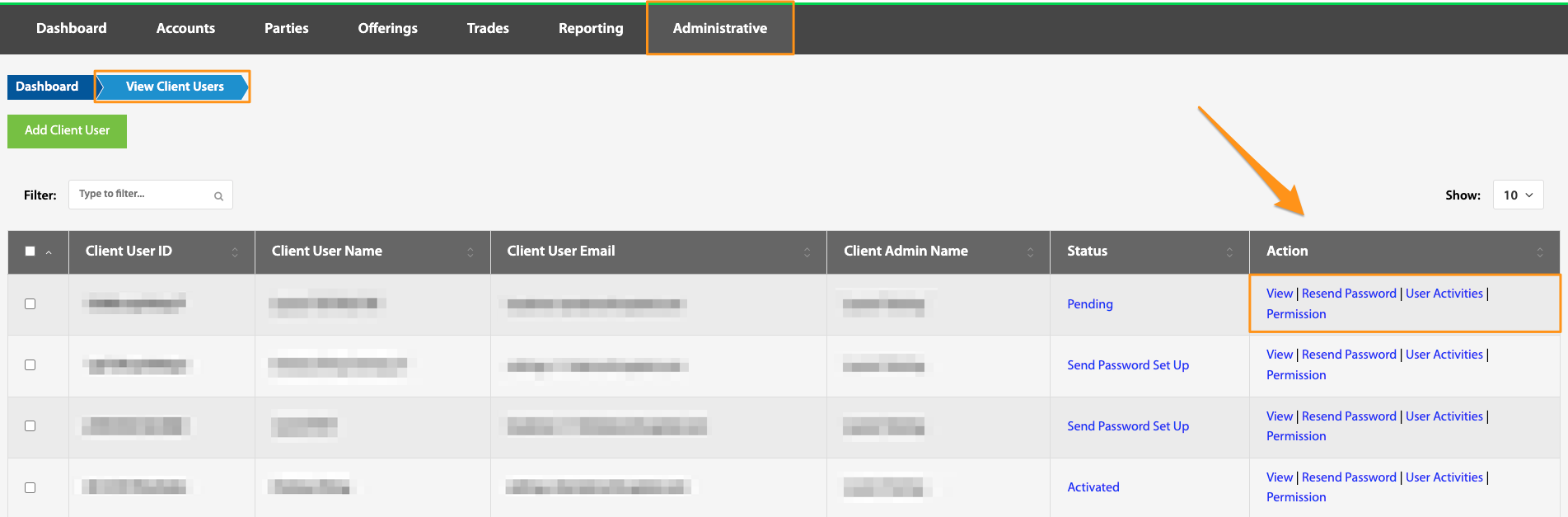
For each client user, several action can be performed. Below is a breakdown of each action:
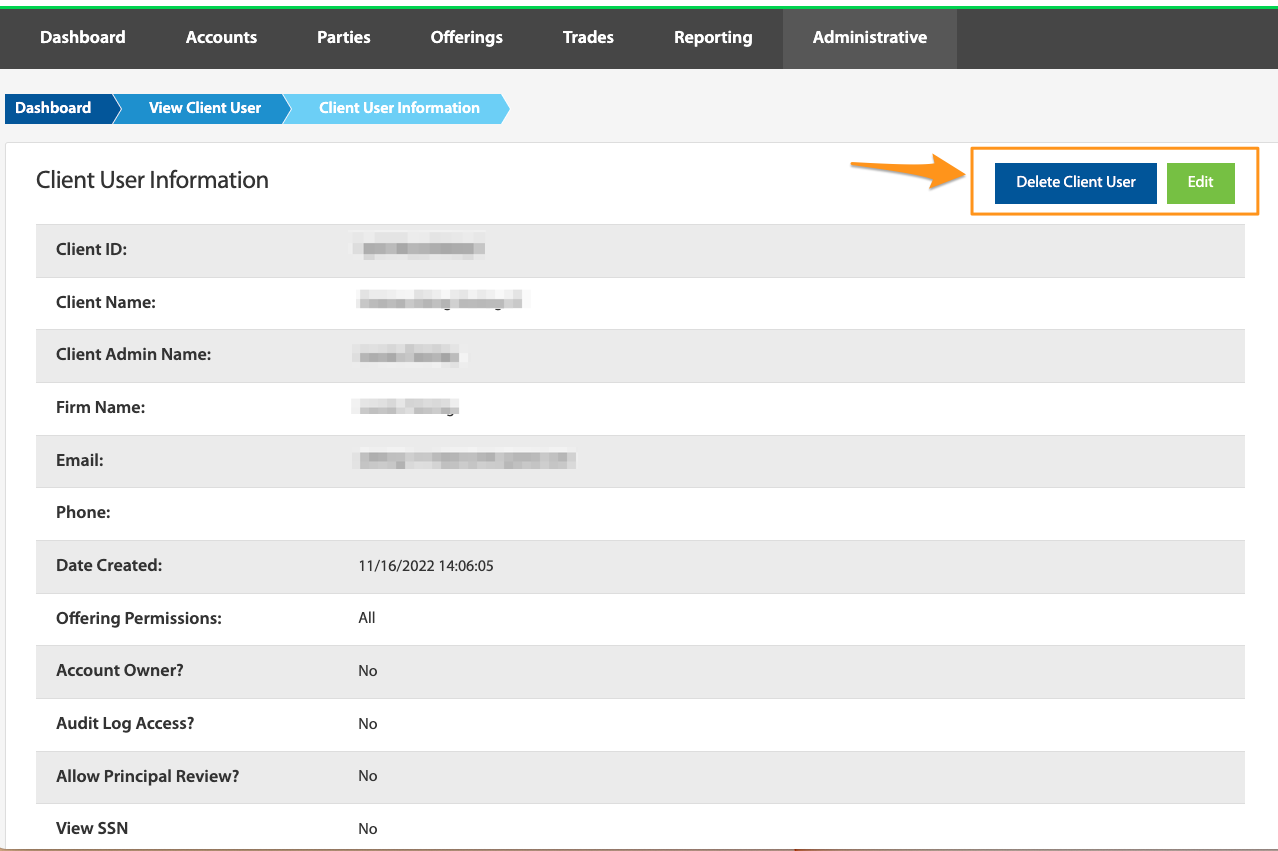
- View - Client user information and permissions can be viewed or edited. It is also possible to delete the Client User from this page
- Resend Password - There are a few situations where a password set up email may need to be resent. First, if the Send Password Set Up box is not selected at the time of the client user account creation. And second, if the user doesn't receive or can't find the original set up email. Selecting this button will resend instructions to the email address associated with the new admin user’s account. They will then be prompted to set up their account password. Account creation is complete upon finalized password set-up.

- User Activities - This is a placeholder for future functionality
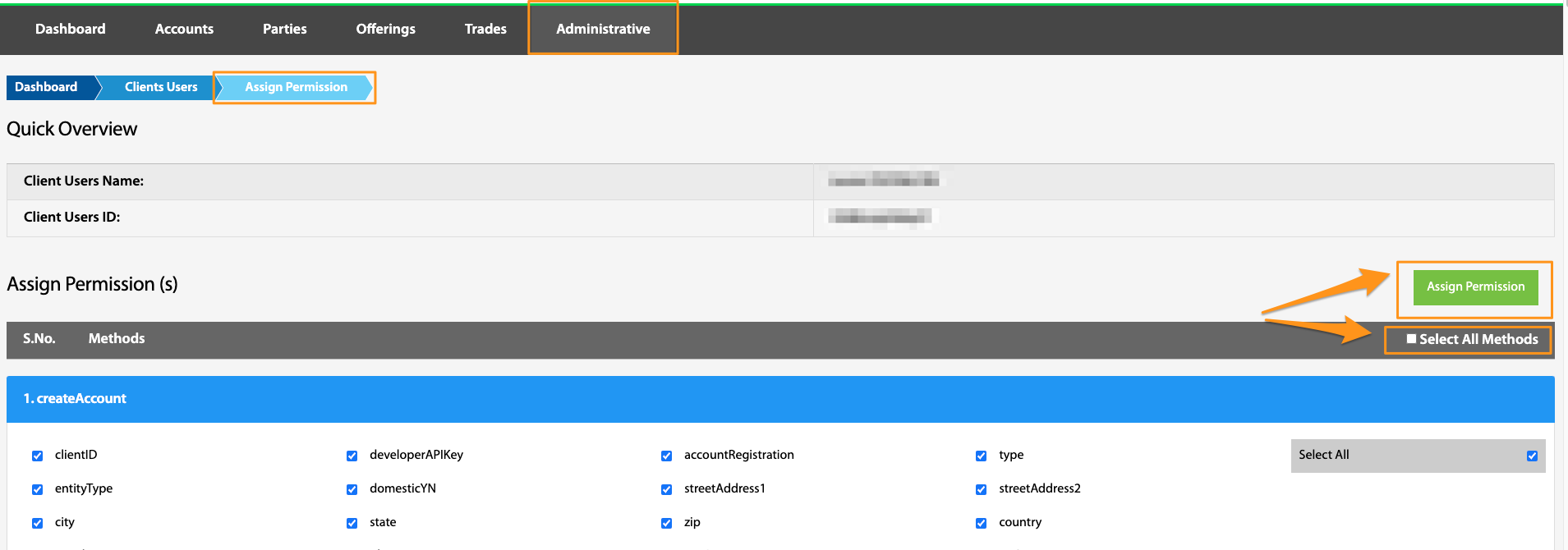
- Permission - API permissions can be assigned and updated here by selecting Select All Methods followed by Assign Permission.
If at any point further assistance is needed, please contact techsupport@NorthCapital.com.