Administrative View
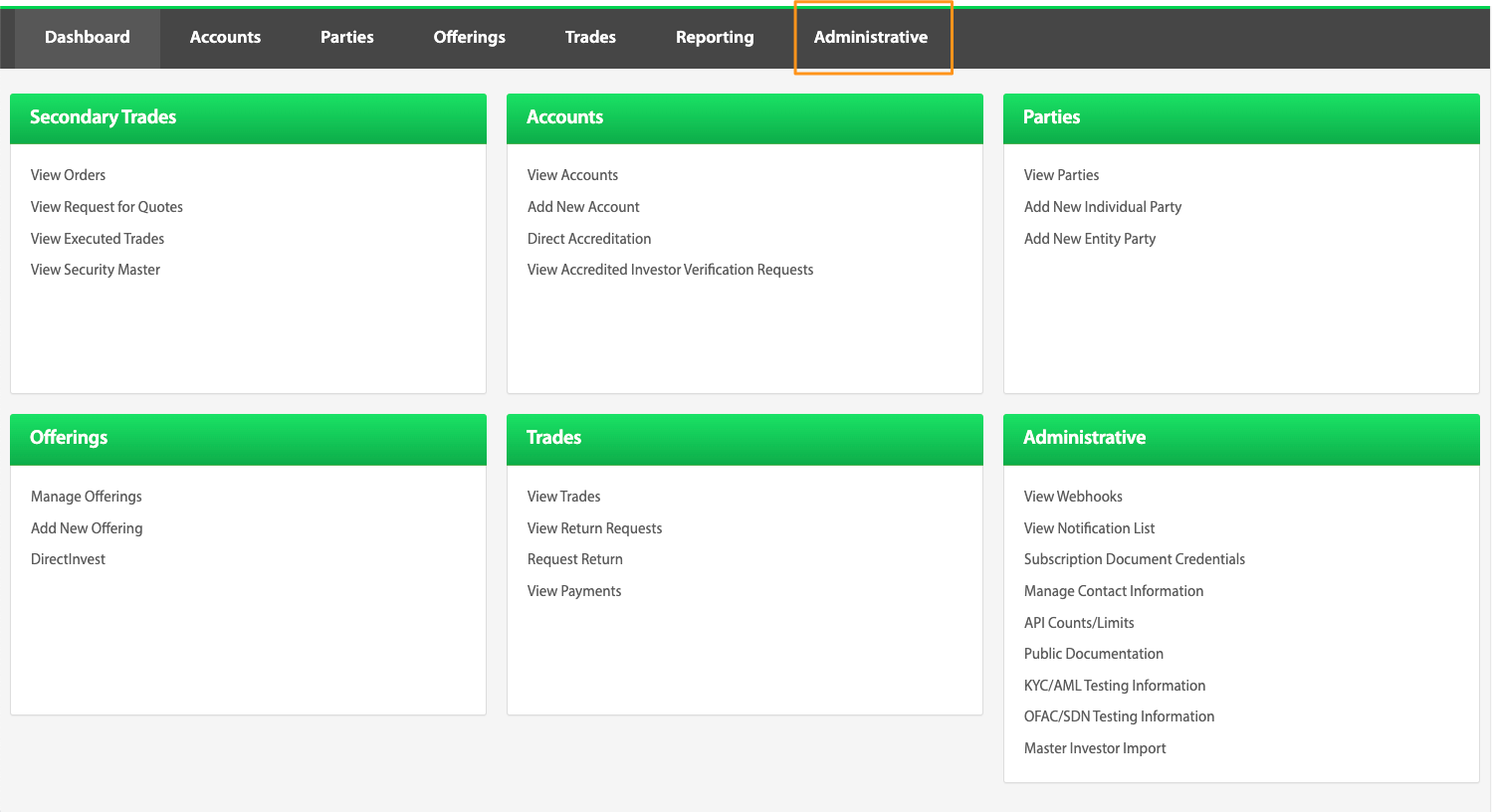
The Administrative page contains sensitive admin portal information including developer API keys, the Audit Log, and is the location to create new user accounts. Access to the features of this page can be granted or revoked at any time by editing individual client user permissions, as described in the TransactAPI admin panel users guide.
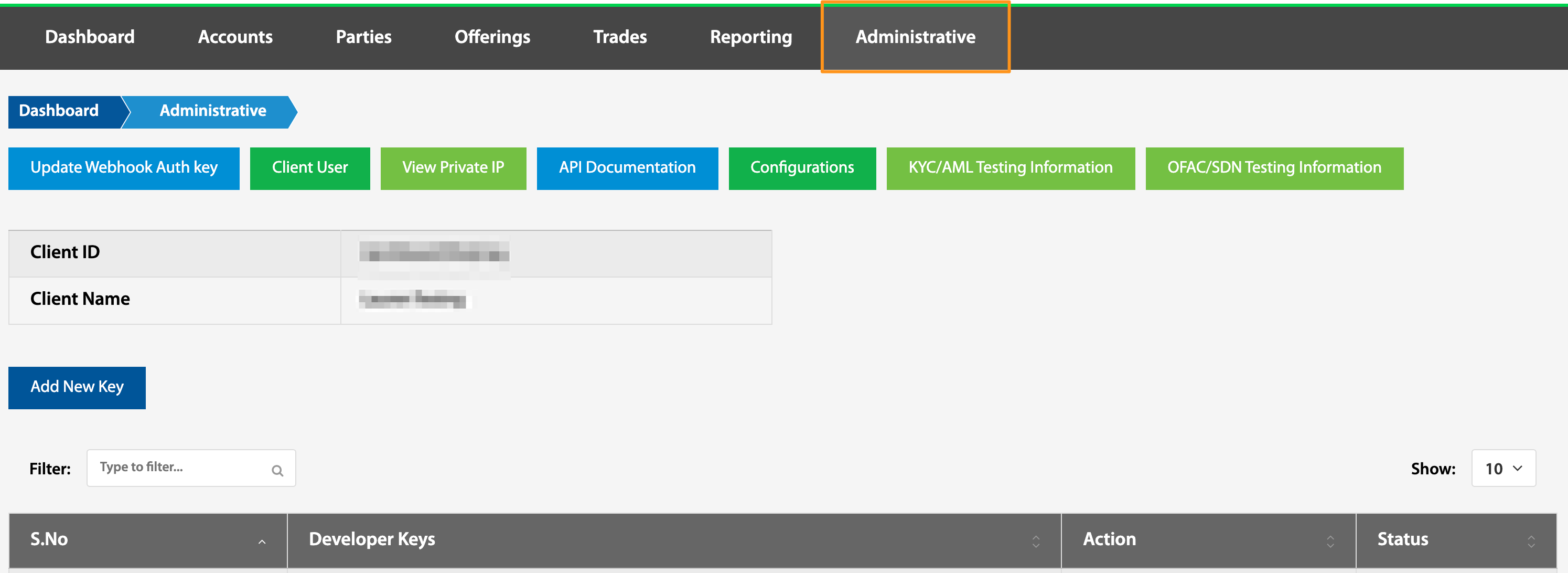
Developers can find dev keys from this view. To do this from the Dashboard page of TransactAPI, navigate to the Administrative view. On this page, all of the current developer keys are listed. By clicking on the hyperlink associated with each key, overview information and specific permissions assigned to that key can be viewed and edited.
From a key's page you can clone or rotate the key. Clone creates a new key with the same permissions and leaves the original untouched. Rotate creates a new key with the same permissions and lets the old key keep working for 24 hours, so you can deploy the new key without downtime; after 24 hours the old key stops authenticating. A key can also have an expiry. The Developer Keys list shows each key's expiry in UTC, or Never, and Add New Key takes an optional expiry date and time (the default is Never). An expiry cannot be changed after the key is created; to change it, clone or rotate the key. An expired key is refused with the same invalid-key error as a deactivated key, and cannot be reactivated.
Note: Only admin with account owner status are able to access API keys. If API keys are not available through the above method, please contact the account administrator to ensure the account being utilized is established as an account owner.